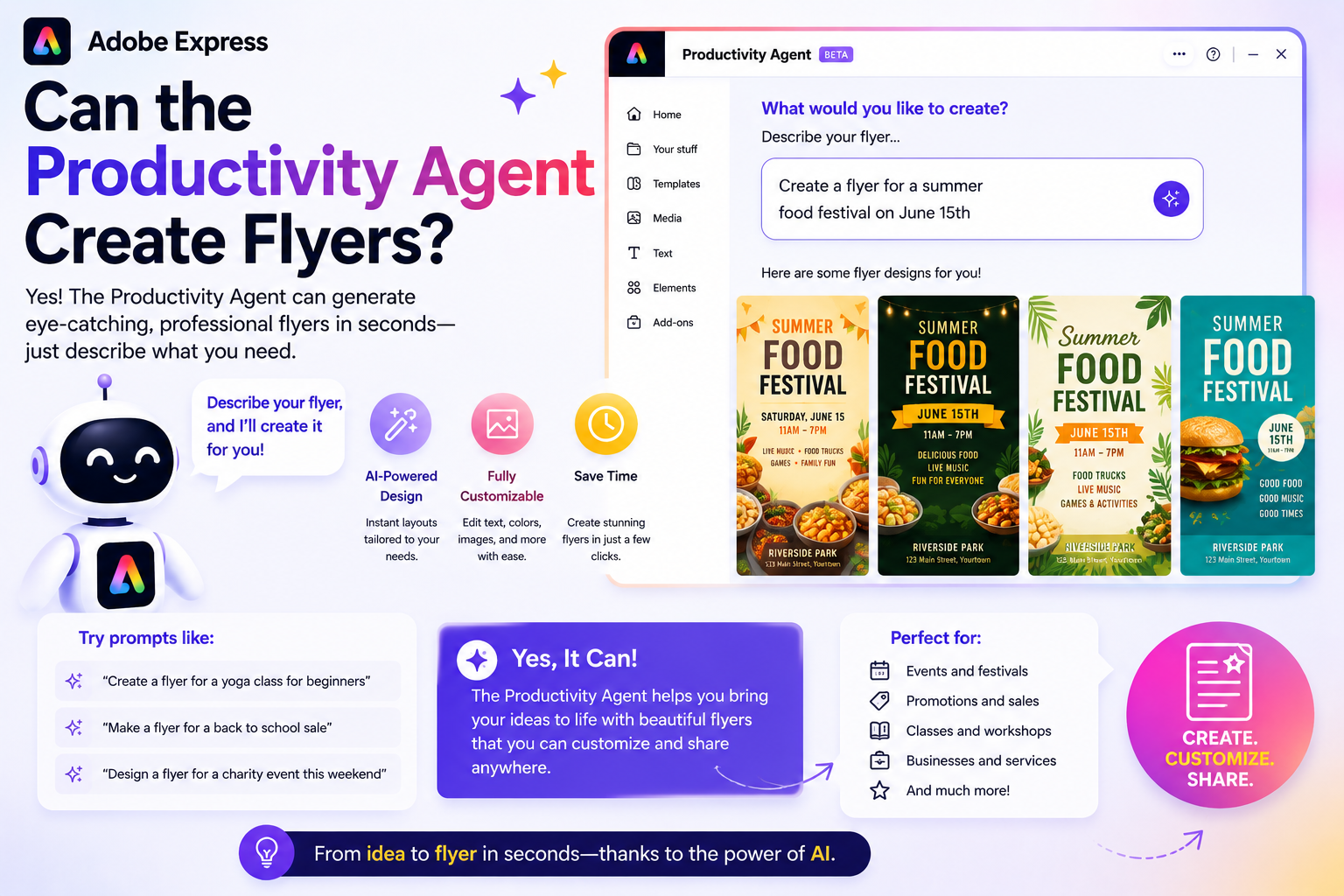
Flyers remain one of the most effective ways to promote products, services, events, and special offers. Whether you’re advertising a business, announcing a community event, or launching a new product, a well-designed flyer can quickly grab attention and communicate your message.
With the introduction of the Adobe Express Productivity Agent, many users are asking whether AI can help create professional flyers. The answer is yes. The Productivity Agent is designed to assist with generating flyer layouts, writing promotional copy, suggesting visuals, and applying your branding, making flyer creation faster and easier.
In this guide, we’ll explore how the Productivity Agent can help you create effective flyers in Adobe Express.
What Is the Adobe Express Productivity Agent?
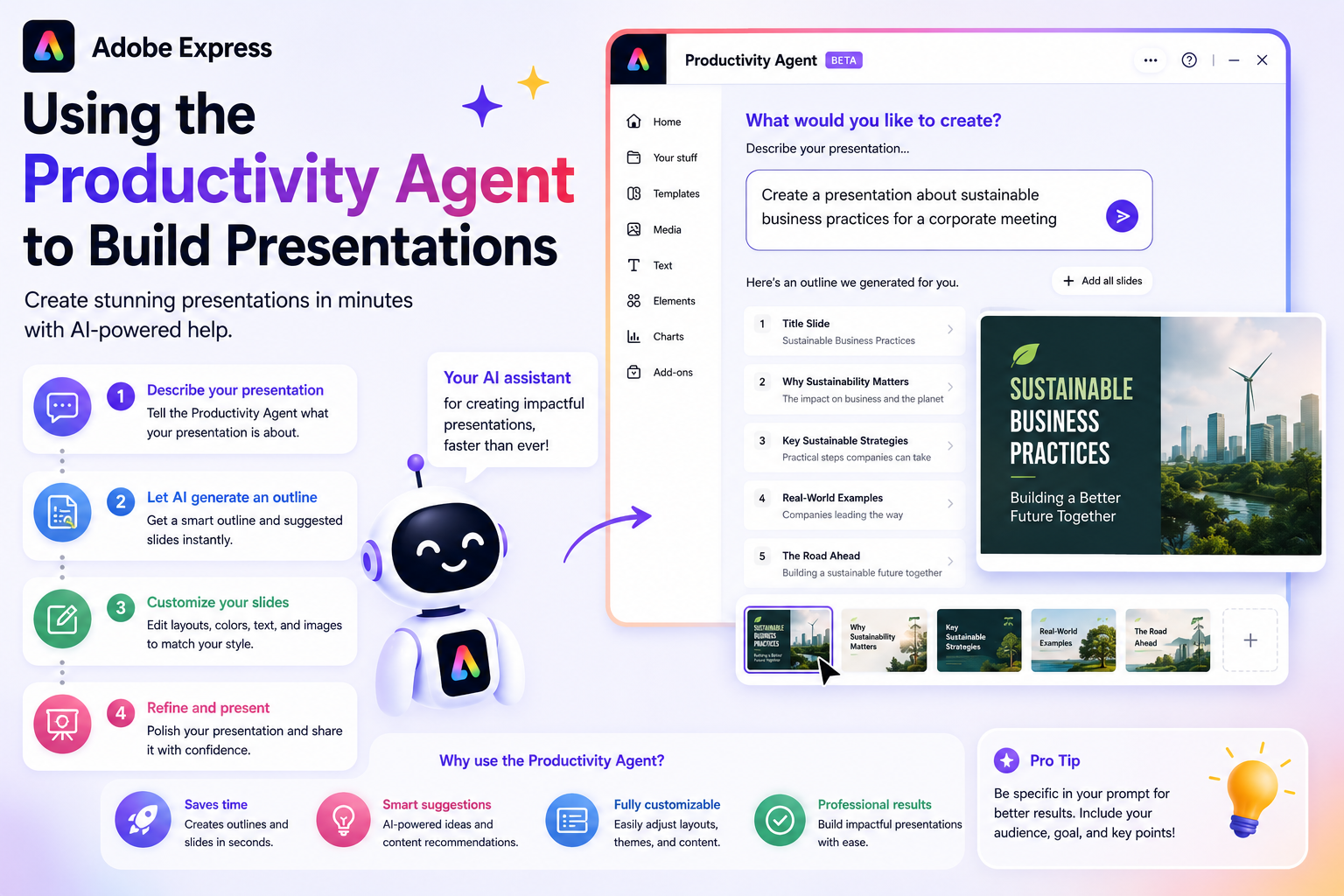
The Productivity Agent is Adobe Express’s AI-powered assistant that helps automate creative tasks.
Instead of starting every project with a blank page, you can describe your objective in plain language, and the AI helps generate designs, layouts, content, and creative suggestions.
For flyer creation, this means spending less time designing and more time refining your message.
What Types of Flyers Can It Help Create?
The Productivity Agent can assist with a wide variety of flyer types, including:
- Business promotions
- Product launches
- Grand openings
- Restaurant specials
- Community events
- Charity fundraisers
- Workshops
- Conferences
- Recruitment campaigns
- Real estate listings
- School announcements
- Seasonal sales
Because Adobe Express offers numerous templates and design tools, the Productivity Agent can adapt to many different flyer styles.
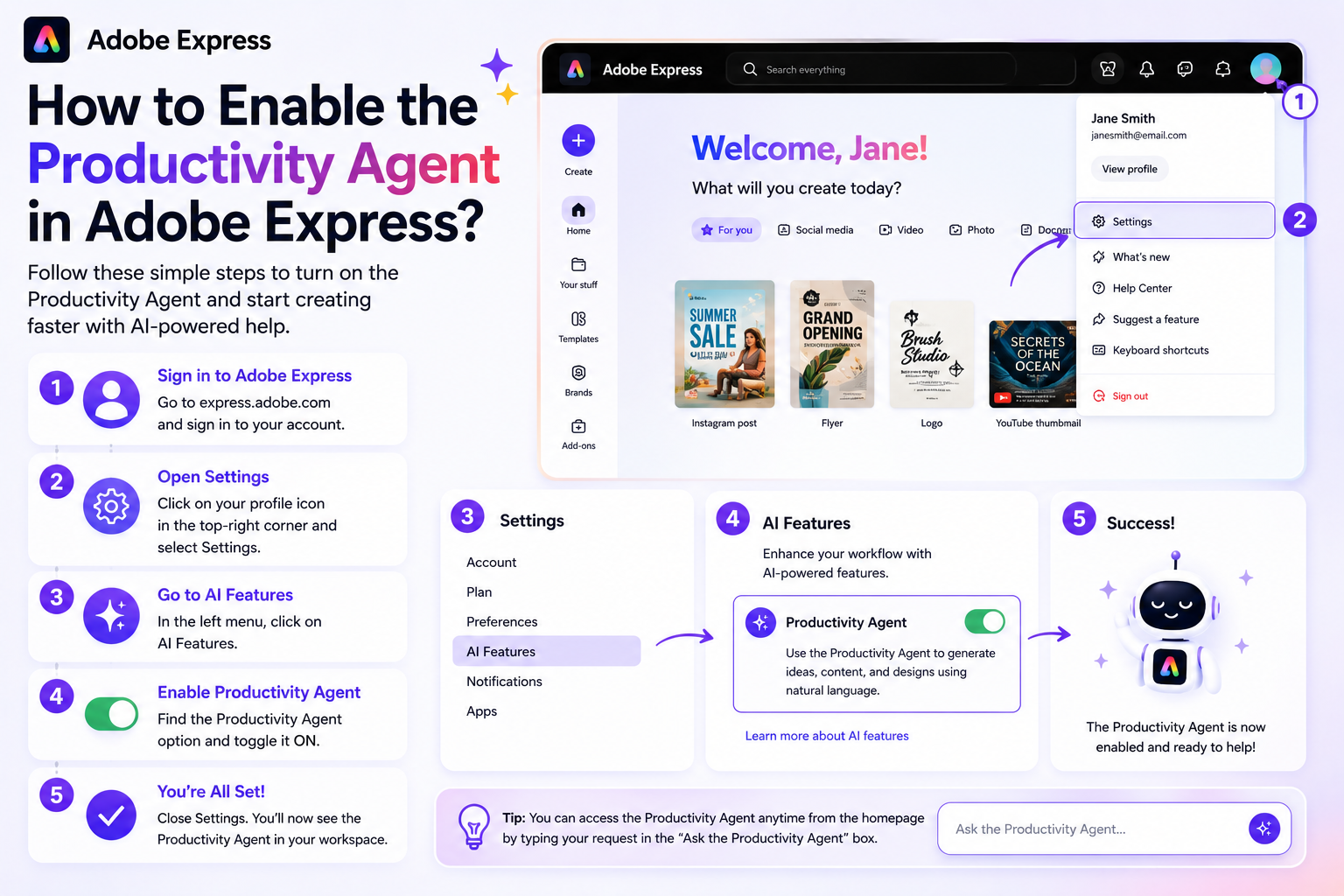
Step 1: Start a Flyer Project
Open Adobe Express and create a new design.
Choose:
Flyer
or select a custom page size if you have specific print requirements.
Once the project opens, you’re ready to begin working with AI-assisted tools.
Step 2: Describe Your Flyer
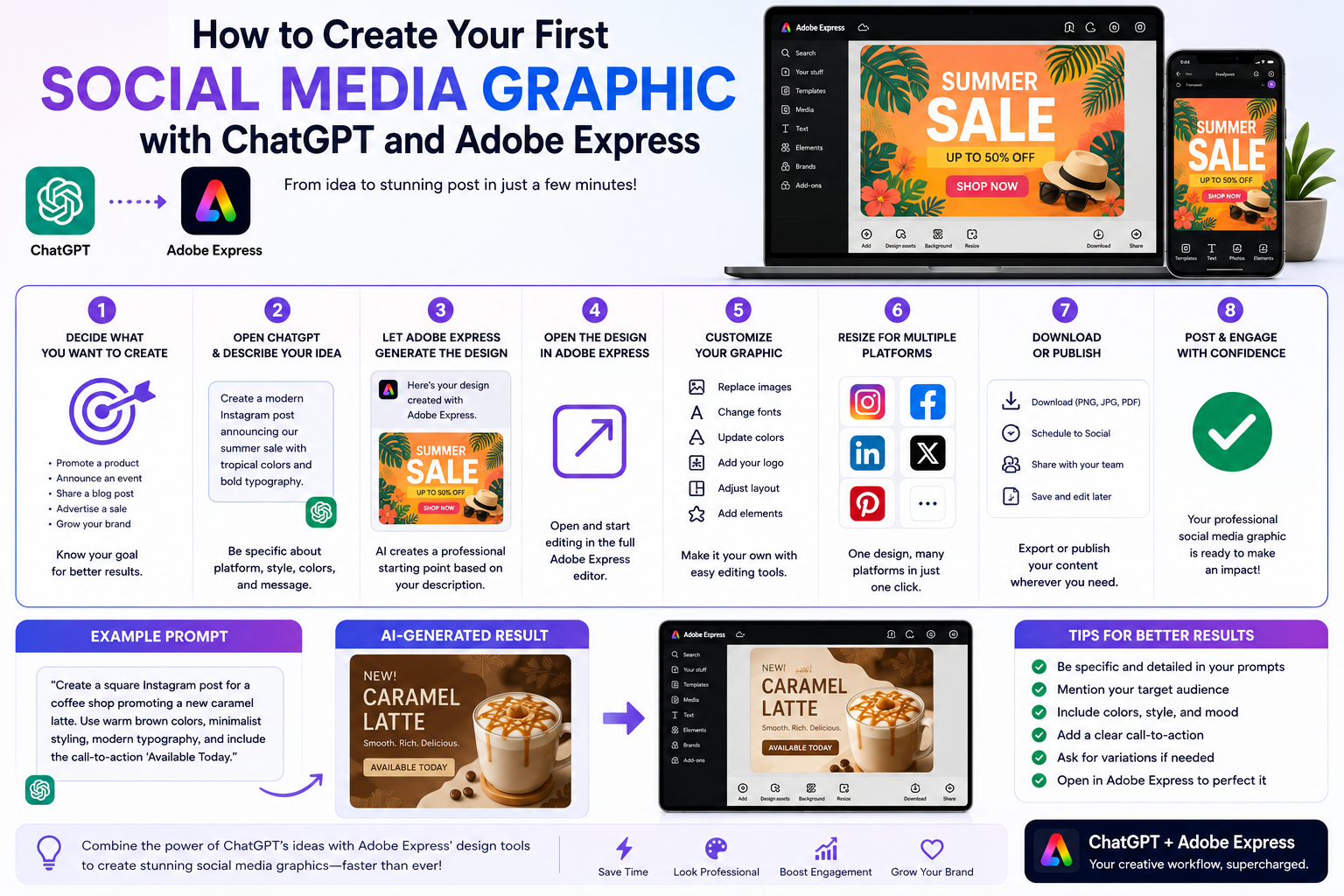
Instead of manually building every element, tell the Productivity Agent what you need.
Examples include:
Create a flyer promoting a summer sale.
Design a flyer for our charity fundraiser.
Build a grand opening flyer for a coffee shop.
Create a professional flyer advertising an online marketing workshop.
Providing details about your audience, event, or business helps the AI generate more relevant suggestions.
Step 3: Review the Generated Layout
The Productivity Agent may suggest:
- Page layouts
- Headlines
- Image placement
- Color schemes
- Typography
- Call-to-action sections
Choose the layout that best matches your goals.
Remember that AI-generated layouts are starting points—you can customize every element.
Step 4: Customize the Flyer
Replace placeholder information with your own details.
Typical flyer content includes:
Title
Examples:
- Summer Sale
- Grand Opening
- Free Workshop
- Community Event
Description
Briefly explain:
- What is happening
- Why people should attend
- What makes it valuable
Date and Time
Clearly display when the event takes place.
Location
Include:
- Address
- Online meeting link
- QR code if appropriate
Contact Information
Provide:
- Website
- Phone number
Call-to-Action
Examples:
- Register Today
- Visit Our Website
- Shop Now
- Reserve Your Seat
- Limited-Time Offer
Step 5: Apply Your Brand Kit
For businesses, branding is essential.
The Productivity Agent can work alongside Adobe Express Brand Kits to apply:
- Company logo
- Brand colors
- Approved fonts
- Brand graphics
This helps maintain consistency across all marketing materials.
Step 6: Add Images and Icons
Visuals make flyers more engaging.
The Productivity Agent can help recommend layouts that include:
- Product photos
- Business imagery
- Icons
- Decorative graphics
- Background elements
Choose visuals that reinforce your message rather than overwhelm it.
Step 7: Generate Alternative Designs
If you’re unsure about the first result, ask the Productivity Agent for more options.
Examples:
Create another version.
Try a modern design.
Make it more colorful.
Use a minimalist layout.
Exploring multiple versions often leads to stronger final designs.
Step 8: Prepare the Flyer for Print or Digital Sharing
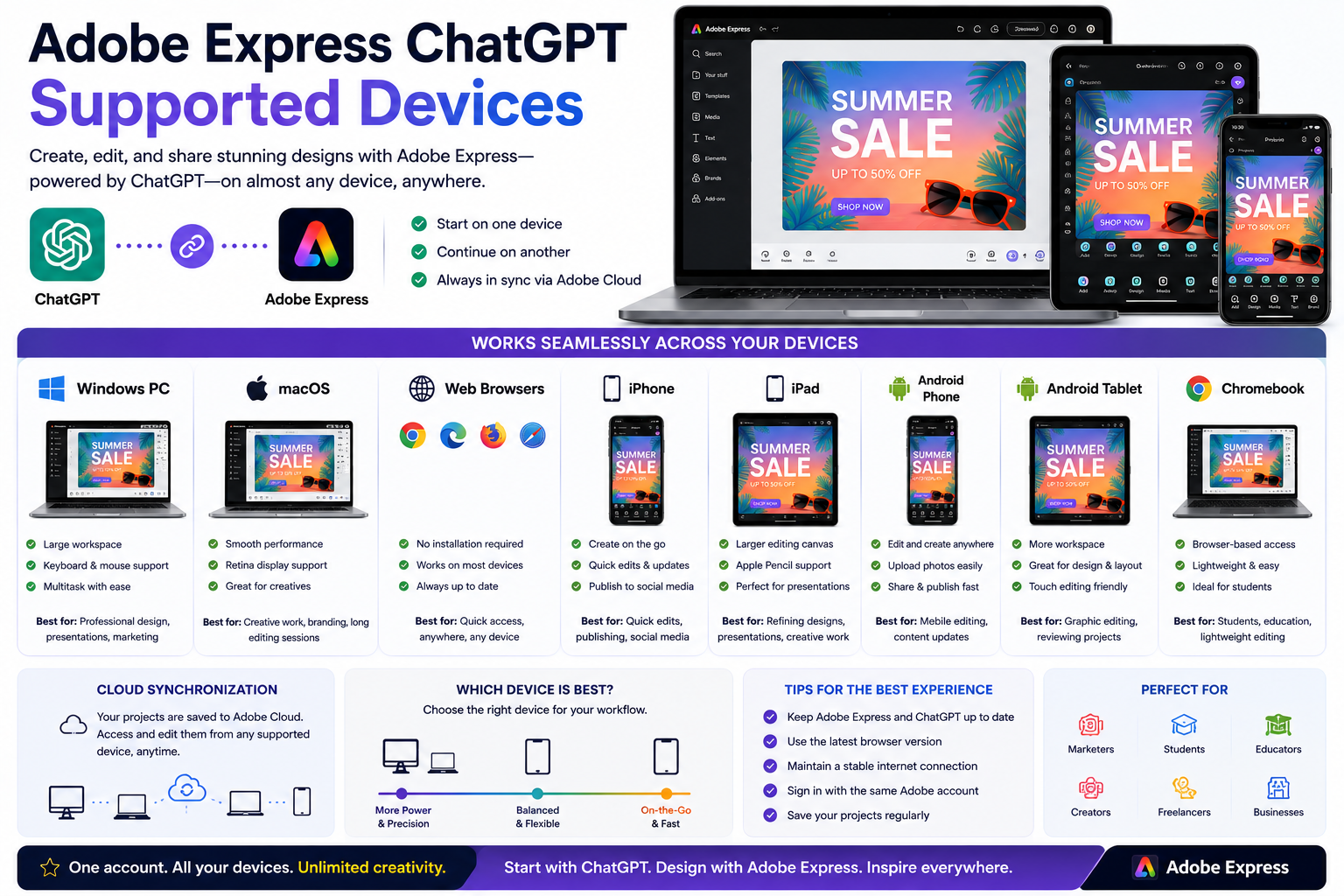
Adobe Express flyers can be used in many ways.
Digital uses include:
- Social media
- Email newsletters
- Website downloads
- Digital displays
Printed uses include:
- Community notice boards
- Retail stores
- Conferences
- Schools
- Trade shows
Export your flyer in the format that best suits its purpose.
Flyer Design Tips
Keep the Headline Short
Your main message should be understood within seconds.
Focus on One Goal
Avoid trying to communicate too many messages on a single flyer.
Use High-Quality Images
Professional images improve credibility and engagement.
Leave White Space
Avoid overcrowding the page.
A clean design is easier to read.
Highlight the Call-to-Action
Make it obvious what readers should do next.
Example Workflow
Imagine you’re hosting a photography workshop.
You could ask:
Create a modern flyer promoting a beginner photography workshop on September 10. Include a camera-themed design, blue and white colors, and a “Register Now” button.
The Productivity Agent might generate:
- A professional flyer layout
- A bold headline
- Relevant imagery
- Suggested event copy
- A clean call-to-action section
You simply personalize the details and publish.
Who Can Benefit?
The Productivity Agent is especially useful for:
- Small business owners
- Event organizers
- Marketing teams
- Teachers
- Non-profit organizations
- Freelancers
- Community groups
- Entrepreneurs
Anyone who regularly creates promotional materials can save valuable time.
Common Mistakes to Avoid
Too Much Text
Keep information concise and easy to scan.
Poor Contrast
Ensure text is readable against the background.
Missing Contact Information
Always include a way for readers to learn more or take action.
Ignoring Branding
Consistent branding helps build trust and recognition.
Publishing Without Reviewing
Always double-check:
- Dates
- Prices
- Addresses
- URLs
- Phone numbers
- Spelling
A quick review helps avoid costly mistakes.
Final Thoughts
Yes, the Adobe Express Productivity Agent can help you create professional flyers quickly and efficiently. By generating layouts, suggesting marketing copy, organizing visual elements, and applying your branding, it reduces the amount of manual work needed to produce high-quality promotional materials.
Whether you’re promoting a sale, announcing an event, launching a product, or advertising a service, the Productivity Agent provides a fast starting point that you can easily customize to match your goals. Combined with Adobe Express’s templates and design tools, it makes flyer creation accessible to beginners while still offering enough flexibility for experienced creators.