Animation is one of the easiest ways to make your designs more engaging. Whether you’re creating social media posts, marketing videos, presentations, advertisements, educational content, or website graphics, Adobe Express allows you to animate text, images, icons, shapes, and entire pages with just a few clicks.
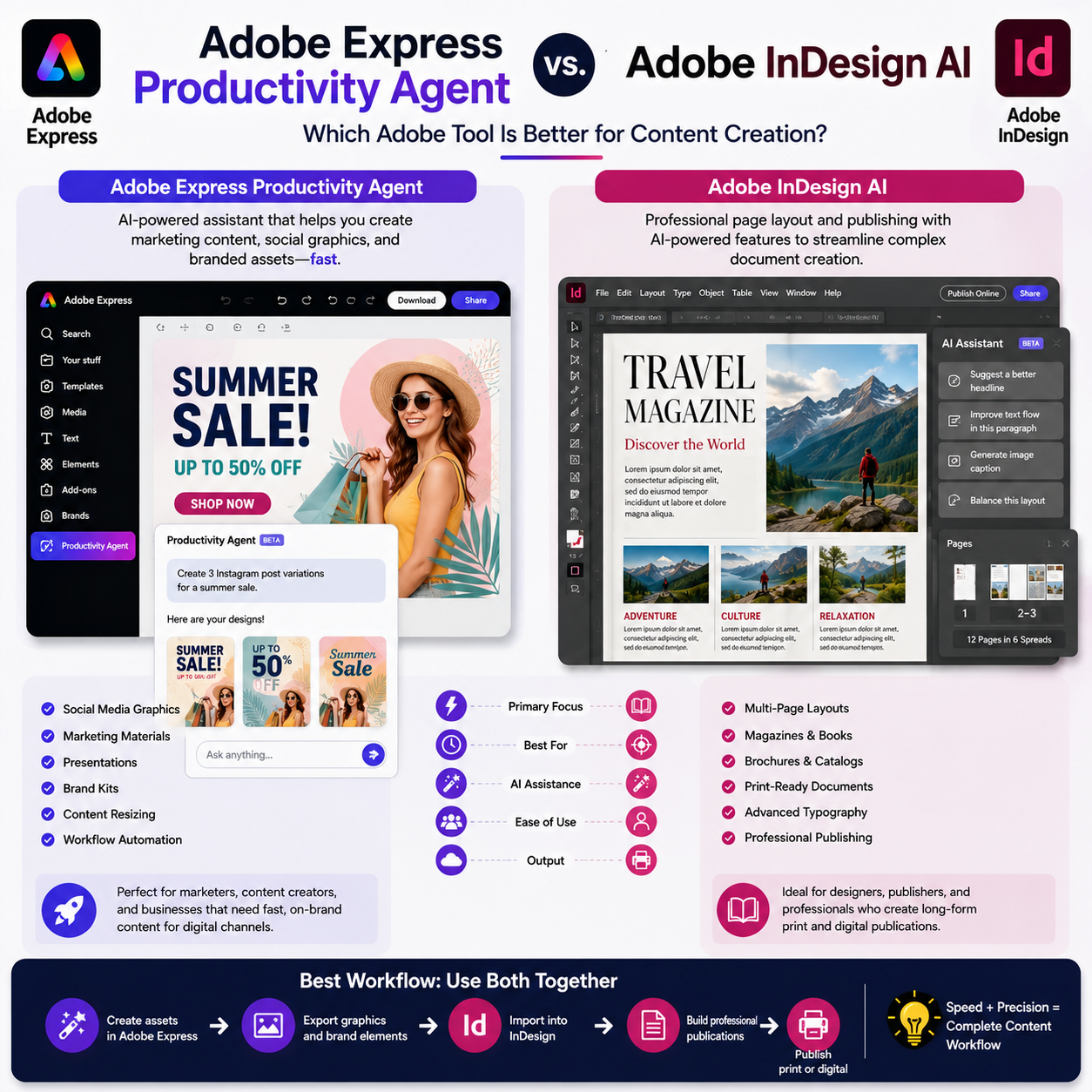
Unlike professional motion graphics software such as Adobe After Effects, Adobe Express focuses on simple, beginner-friendly animations that can dramatically improve visual appeal without requiring animation experience.
In this guide, you’ll learn how to add animations in Adobe Express and use them effectively in your projects.

Quick Answer
To add animation in Adobe Express:
- Open your project.
- Select the element you want to animate.
- Click Animation.
- Choose an animation style.
- Preview the effect.
- Adjust timing if available.
- Export the project as a video or animated format.
Animations can be applied to text, images, icons, shapes, and entire pages.
Why Use Animation?
Animation helps capture attention and improve engagement.
Common benefits include:
Better Social Media Performance
Animated content often attracts more views.
Improved Storytelling
Guide viewers through information.
Professional Appearance
Create polished marketing materials.
Enhanced Presentations
Keep audiences engaged.
Stronger Calls-to-Action
Draw attention to important messages.
What Can You Animate in Adobe Express?
Adobe Express supports animation for various design elements.
Text
Animate headlines and captions.
Images
Bring photos to life.
Icons
Create visual emphasis.
Shapes
Add movement to design elements.
Logos
Enhance brand visibility.
Entire Pages
Create transitions between slides or scenes.
Step 1: Open Adobe Express
Sign in to Adobe Express and open a project.
Animation can be used in:
- Social media graphics
- Videos
- Presentations
- Web content
- Marketing materials
Step 2: Select an Element
Click the object you want to animate.
Examples:
- Text box
- Photo
- Logo
- Icon
- Shape
The selected object becomes editable.
Step 3: Open the Animation Panel
With the object selected, click:
Animation
or
Animate
depending on your version of Adobe Express.
The animation options will appear.
Step 4: Choose an Animation Style
Adobe Express typically offers several animation categories.
Fade
Elements gradually appear.
Best for:
- Professional presentations
- Corporate content
Pop
Elements quickly scale into view.
Best for:
- Social media graphics
- Promotional content
Slide
Elements move onto the screen.
Best for:
- Tutorials
- Explainers
Zoom
Objects grow or shrink dynamically.
Best for:
- Product showcases
- Marketing materials
Bounce
Creates playful movement.
Best for:
- Educational content
- Creative projects
Step 5: Preview the Animation
After selecting an effect:
- Click Preview.
- Watch the animation.
- Decide whether it fits the design.
Testing multiple options often helps identify the strongest visual effect.
Step 6: Adjust Timing
Depending on the animation type, Adobe Express may allow adjustments to:
Duration
How long the animation lasts.
Speed
How quickly the motion occurs.
Delay
When the animation begins.
These settings help create smoother experiences.
Step 7: Animate Multiple Elements
You can animate several objects independently.
Example:
Logo
Fade in.
Headline
Pop in.
Call-to-Action Button
Slide in.
This layered approach creates more engaging designs.
How to Animate Text
Text animation is one of the most popular uses.
Examples
Headlines
Subtitles
Quotes
Calls-to-action
Popular Effects
- Fade
- Slide
- Pop
- Zoom
Animated text works especially well in social media content.
How to Animate Images
Photos can be animated to create movement.
Examples:
Product Photos
Highlight products.
Travel Images
Add visual energy.
Marketing Graphics
Increase engagement.
Subtle motion often produces the most professional results.
How to Animate Logos
Logo animation helps strengthen branding.
Common effects:
Fade In
Professional appearance.
Zoom
Attention-grabbing introduction.
Slide
Dynamic brand reveal.
Many businesses use animated logos in promotional videos.
How to Animate Entire Pages
Adobe Express allows page-level animations in some projects.
Examples:
Presentations
Transition between slides.
Storytelling Projects
Guide viewers through sections.
Marketing Videos
Create smoother scene changes.
Page animations help maintain viewer attention.
Best Uses for Animation
Instagram Posts
Stand out in crowded feeds.
Instagram Stories
Add movement and energy.
LinkedIn Content
Increase engagement.
Facebook Ads
Highlight offers and promotions.
Presentations
Keep audiences interested.
Educational Videos
Illustrate concepts more effectively.
Animation Tips
Keep Animations Simple
Subtle effects often look more professional.
Focus on Important Elements
Animate headlines and key messages.
Avoid Overusing Effects
Too much movement can become distracting.
Maintain Consistency
Use similar animation styles throughout a project.
Preview Before Exporting
Always review the final result.
Common Animation Mistakes
Excessive Motion
Can overwhelm viewers.
Using Too Many Different Effects
Creates visual inconsistency.
Fast Timing
Viewers may miss important information.
Distracting Animations
Animation should support the message, not dominate it.
Ignoring Mobile Viewers
Ensure animations work well on small screens.
Exporting Animated Projects
Once animations are complete:
- Click Download.
- Choose a supported format.
Common options include:
MP4
Best for videos and social media.
Animated GIF
Useful for short looping animations.
MP4 is usually the preferred format for modern platforms.
Adobe Express vs After Effects
Adobe Express focuses on:
- Simple animations
- Quick content creation
- Social media graphics
- Beginner-friendly workflows
Adobe After Effects
provides:
- Advanced motion graphics
- Keyframe animation
- Visual effects
- Professional animation workflows
For most social media and marketing projects, Adobe Express offers more than enough animation capability.
Frequently Asked Questions
Can I animate text in Adobe Express?
Yes. Adobe Express supports text animation effects such as fade, slide, zoom, and pop.
Can I animate images?
Yes. Images and graphics can be animated using built-in effects.
Can I create animated social media posts?
Yes. Adobe Express is widely used for animated social media content.
Can I animate logos?
Yes. Logos can be animated to create professional branding effects.
What format should I export animated projects in?
MP4 is generally the best option for videos and social media platforms.
Final Answer
To add animation in Adobe Express, select a text box, image, logo, icon, shape, or page, open the Animation panel, choose an animation effect, preview the result, and export the finished project. Adobe Express makes it easy to create engaging animated content for social media, presentations, marketing campaigns, educational materials, and videos without requiring advanced motion design skills.