Yes, Adobe Express works very well on Chromebooks. In fact, Adobe Express is one of the most Chromebook-friendly design applications available because it is primarily cloud-based and runs directly in a web browser. This means you don’t need a powerful computer or complicated software installation to create graphics, videos, presentations, social media posts, flyers, posters, and marketing materials.
Whether you’re a student, teacher, small business owner, marketer, or content creator, Adobe Express can be used effectively on most modern Chromebooks.
In this guide, we’ll explain how Adobe Express works on ChromeOS, what features are available, and what limitations Chromebook users should know about.

Quick Answer
Yes, Adobe Express works on Chromebook.
You can use Adobe Express on a Chromebook through:
- Google Chrome browser
- Adobe Express web application
- Adobe Express Android app (on supported devices)
Most design, video editing, AI, and content creation features are available directly through the browser.
Why Adobe Express Works Well on Chromebook
Unlike traditional Adobe applications that require installation, Adobe Express is primarily:
Cloud-Based
Most processing occurs online.
Browser-Based
Runs directly in Chrome.
Lightweight
Requires fewer system resources.
Cross-Platform
Works on Windows, Mac, Chromebook, tablets, and mobile devices.
This makes it a great fit for ChromeOS.
How to Use Adobe Express on Chromebook
Getting started is simple.
Step 1
Open Google Chrome.
Step 2
Visit Adobe Express.
Step 3
Sign in with your Adobe account.
Step 4
Create a new project.
No special software installation is usually required.
Can You Install Adobe Express on Chromebook?
In many cases, yes.
Some Chromebooks support Android applications through the Google Play Store.
You may be able to install:
Adobe Express Android App
However, most users simply use the browser version because it provides the full Adobe Express experience.
What Can You Create on a Chromebook?
Using Adobe Express on a Chromebook, you can create:
Social Media Posts
Flyers
Posters
Presentations
Business Graphics
Marketing Materials
Videos
Web Pages
Invitations
Logos
The Chromebook experience is very similar to using Adobe Express on Windows or Mac.
Social Media Content Creation
Adobe Express works particularly well for:
Instagram Posts
Facebook Graphics
LinkedIn Content
Pinterest Pins
YouTube Thumbnails
TikTok Graphics
Many Chromebook users use Adobe Express specifically for content marketing.
Video Editing on Chromebook
Adobe Express includes browser-based video editing features.
You can:
Trim Videos
Cut Clips
Add Text
Add Music
Create Short Videos
Export MP4 Files
While complex video projects may perform better on higher-end hardware, most basic editing tasks work well on Chromebooks.
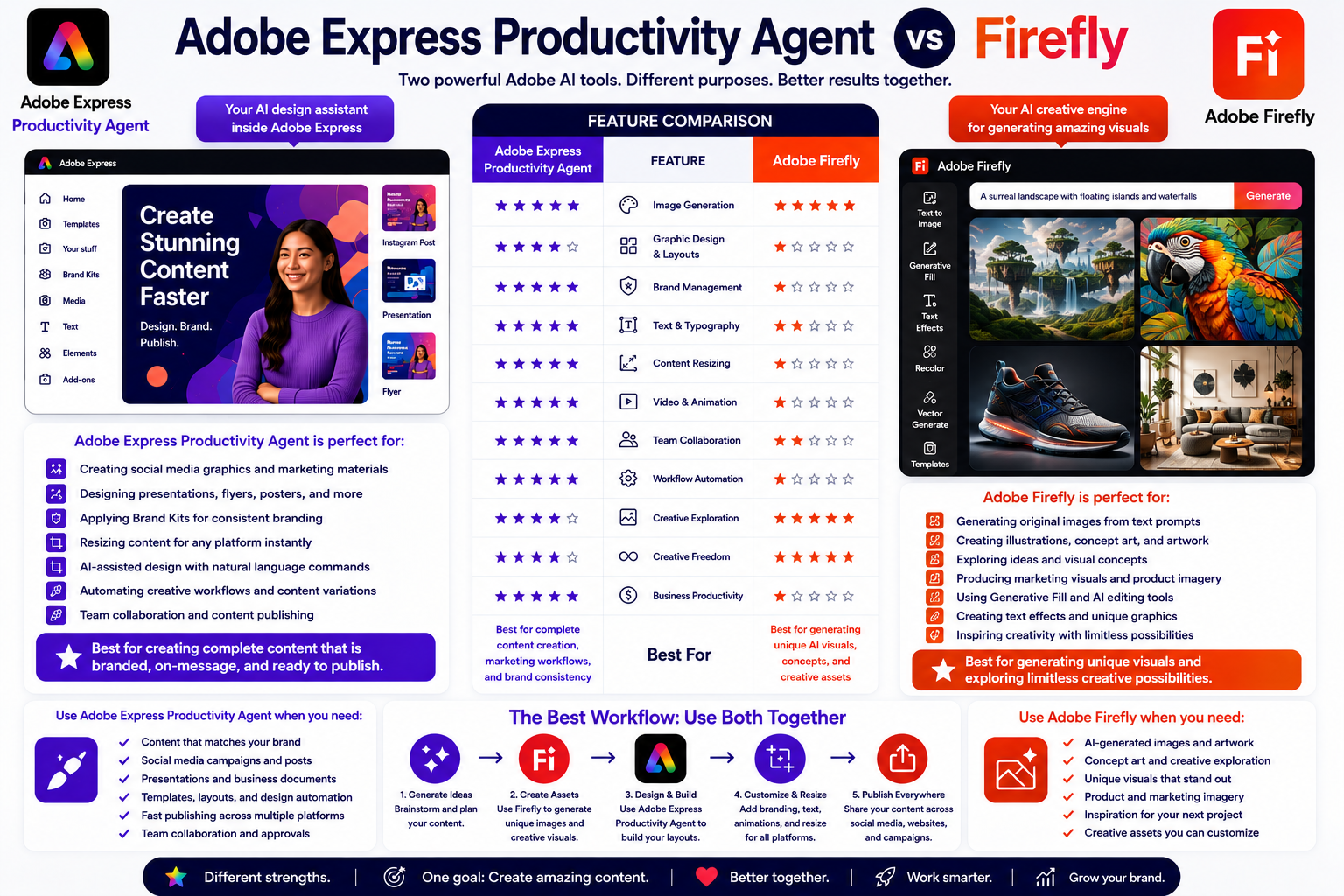
AI Features on Chromebook
Adobe Express includes AI tools powered by:
Adobe Firefly
These features are available through the web interface.
Examples include:
Generate Images
Remove Backgrounds
Text Effects
Generative Editing
Since the AI processing occurs in the cloud, Chromebook hardware is usually not a major limitation.
Do You Need a Powerful Chromebook?
Not necessarily.
Adobe Express is designed to work on a wide range of devices.
For basic projects:
Entry-Level Chromebooks
often perform adequately.
For larger projects:
More RAM
Faster Processors
can improve responsiveness.
However, Adobe Express is much less demanding than professional desktop applications.
Can Students Use Adobe Express on Chromebook?
Absolutely.
Adobe Express is widely used in schools.
Common educational uses include:
Presentations
Classroom Posters
Reports
Digital Storytelling
Project Graphics
Educational Videos
Because many schools deploy Chromebooks, Adobe Express has become a popular classroom tool.
Can Teachers Use Adobe Express on Chromebook?
Yes.
Teachers often create:
Lesson Materials
Classroom Resources
Educational Graphics
Assignments
Learning Presentations
Student Activities
The browser-based workflow is particularly convenient in educational environments.
Can Businesses Use Adobe Express on Chromebook?
Yes.
Many small businesses create:
Marketing Graphics
Promotional Materials
Social Media Content
Event Flyers
Sales Presentations
Advertising Assets
without needing a traditional desktop computer.
Does Adobe Express Save Projects on Chromebook?
Yes.
Projects are stored in your Adobe account.
Benefits include:
Automatic Saving
Cloud Storage
Device Synchronization
Cross-Platform Access
You can start a project on a Chromebook and continue it later on another device.
Can You Download Files on Chromebook?
Yes.
Adobe Express exports files such as:
PNG
JPG
MP4
Downloads are usually saved to:
Downloads Folder
within ChromeOS.
Common Chromebook Limitations
Although Adobe Express works well, some limitations may exist.
Internet Connection Required
Most features require online access.
Large Projects May Be Slower
Older Chromebooks may struggle with very large files.
Browser Performance Varies
Keeping Chrome updated helps.
Limited Offline Functionality
Adobe Express is primarily cloud-based.
Most users are not significantly affected by these limitations.
Adobe Express vs Photoshop on Chromebook
Adobe Express works natively in a browser.
Adobe Express
- Chromebook friendly
- Browser based
- Easy to use
Adobe Photoshop
- More demanding
- Advanced editing
- Greater hardware requirements
For Chromebook users, Adobe Express is generally the easier solution.
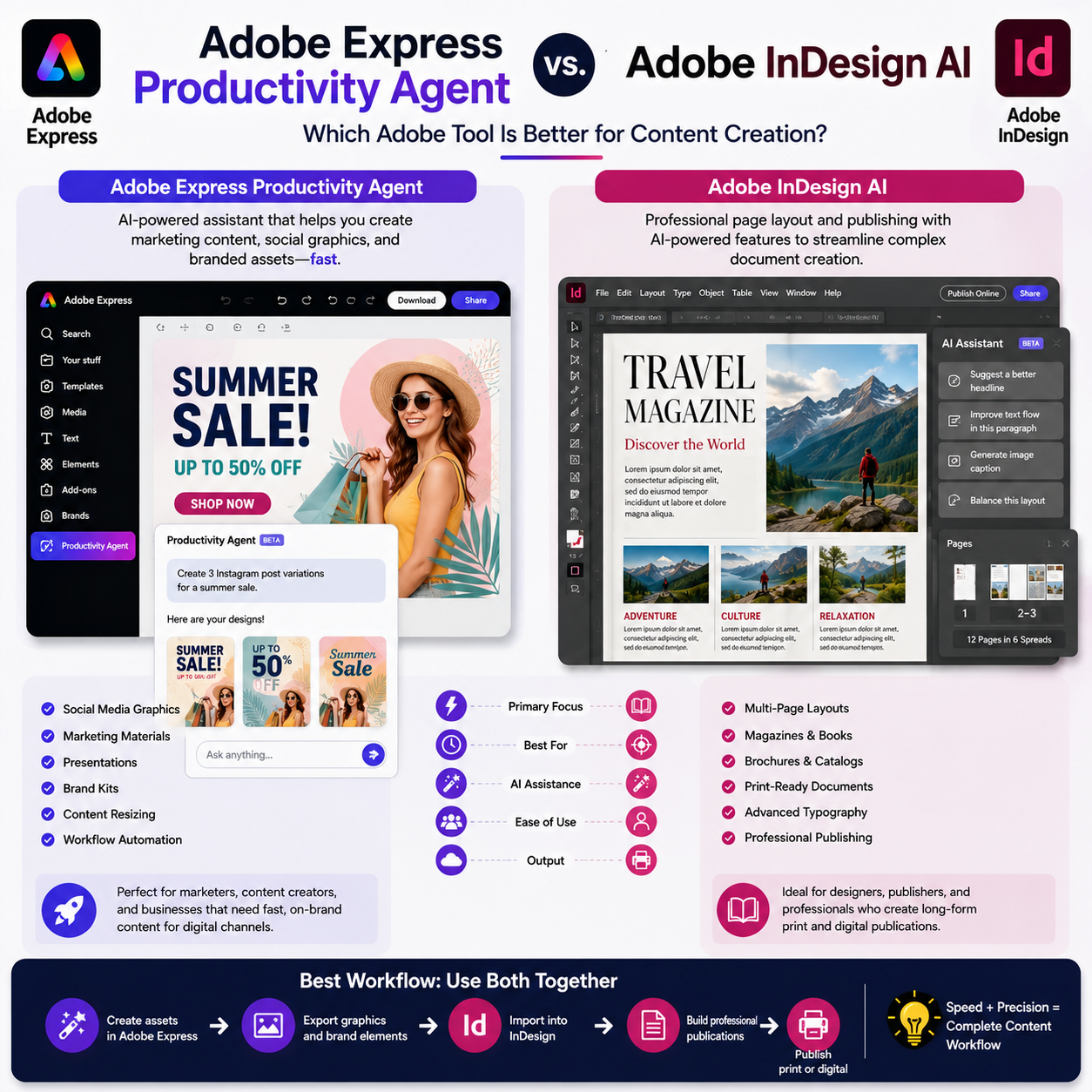
Adobe Express vs Canva on Chromebook
Both platforms work well.
Adobe Express
Strengths:
- Adobe ecosystem integration
- Firefly AI tools
- Adobe Stock integration
Canva
Strengths:
- Large template library
- Collaboration features
- Extensive community
Both perform well on ChromeOS devices.
Tips for Better Performance
Keep Chrome Updated
Close Unused Tabs
Use Stable Internet
Restart Chromebook Occasionally
Avoid Extremely Large Projects
These practices help improve performance.
Troubleshooting Adobe Express on Chromebook
If Adobe Express isn’t working properly:
Refresh the Page
Clear Browser Cache
Update Chrome
Restart the Chromebook
Verify Internet Connectivity
Log Out and Back In
These steps resolve most issues.
Frequently Asked Questions
Can Adobe Express run on Chromebook?
Yes. Adobe Express works well on most modern Chromebooks.
Do I need to install software?
Usually no. The browser version provides the full experience.
Can I edit videos on Chromebook with Adobe Express?
Yes. Basic video editing tools are available through the browser.
Does Adobe Express support AI tools on Chromebook?
Yes. Adobe Firefly-powered features are accessible through the web interface.
Is Adobe Express free on Chromebook?
Yes. Adobe Express offers a free plan, with additional features available through Premium subscriptions.
Final Answer
Yes, Adobe Express works on Chromebook and is one of the most Chromebook-friendly design platforms available. Because it runs primarily in a web browser, users can create social media graphics, presentations, videos, flyers, posters, marketing materials, and AI-generated content without needing powerful hardware or complex software installations. For students, educators, content creators, and small businesses using ChromeOS, Adobe Express provides a fast and effective creative solution.