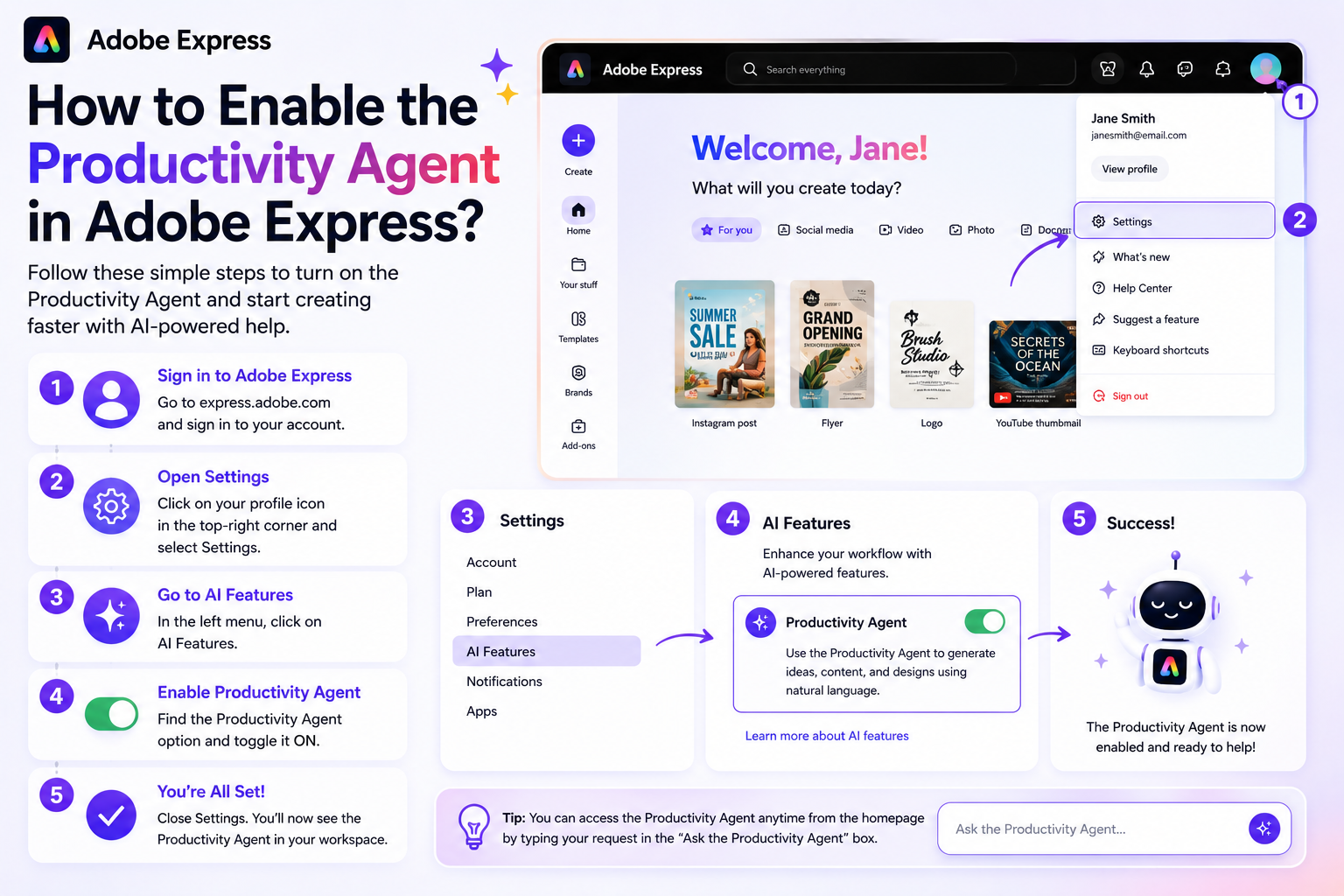
Adobe’s Productivity Agent represents a major step toward AI-powered content creation and workflow automation. Instead of manually performing every task, users can increasingly rely on AI to generate content, organize information, create assets, and accelerate creative projects.
If you’ve heard about the Productivity Agent and want to start using it, you may be wondering:
How do you enable the Productivity Agent in Adobe Express?
The answer depends on which Adobe product, plan, and rollout phase you currently have access to. In this guide, we’ll explain how to check availability, enable related features, and prepare your Adobe Express account for Productivity Agent capabilities.
What Is the Adobe Productivity Agent?
Adobe introduced its Productivity Agent as part of its broader vision for agentic AI. The agent is designed to help users understand information, generate content, automate tasks, and create assets through conversational interactions rather than traditional manual workflows. Adobe describes it as technology that helps users focus on goals and outcomes while AI handles many of the underlying tasks.
Adobe has also discussed bringing agent-style AI assistance into Adobe Express to help users create and improve designs using natural language requests.
Step 1: Make Sure You’re Using the Latest Version of Adobe Express
Before looking for the Productivity Agent, ensure you are using the latest version of Adobe Express.
Web Users
If you’re using Adobe Express in your browser:
- Visit Adobe Express.
- Sign in to your Adobe account.
- Refresh the application.
Since Adobe Express is cloud-based, new features often appear automatically.
Mobile Users
If you’re using:
- iPhone
- iPad
- Android
Visit your app store and install any available updates.
Many AI features are introduced through app updates.
Step 2: Sign In with an Adobe Account
Most advanced AI capabilities require an authenticated Adobe account.
If you are not signed in:
- Open Adobe Express.
- Select Sign In.
- Log in with your Adobe ID.
Some AI-powered features may not appear until authentication is completed.
Step 3: Check Your Adobe Plan
The Productivity Agent is tied to Adobe’s AI ecosystem and may not be available on every plan.
Adobe has announced Productivity Agent availability through offerings such as:
- Acrobat Express
- Acrobat Studio
- Acrobat AI plans
- Adobe Express Premium integrations in some workflows
Depending on how Adobe expands availability, certain features may require:
- Adobe Express Premium
- Creative Cloud subscriptions
- Acrobat AI plans
- Enterprise access
Step 4: Enable AI Features
The Productivity Agent builds upon Adobe’s AI technologies.
Within Adobe Express, look for:
- AI Tools
- Quick Actions
- Generative AI Features
- Firefly-powered tools
- Assistant panels
Adobe continues to integrate AI experiences throughout Express, and these tools often serve as the foundation for agent-powered workflows.
Step 5: Look for Conversational Interfaces
One of the defining characteristics of the Productivity Agent is conversational interaction.
You may see prompts such as:
- What would you like to create?
- Describe your project.
- Tell us your goal.
Instead of selecting templates manually, you’ll be able to describe outcomes such as:
- Create a social media campaign.
- Build a webinar promotion.
- Generate marketing assets.
- Turn this content into a presentation.
The agent then helps assemble the required content.
Step 6: Enable Brand Assets
To get the most value from the Productivity Agent, configure your Brand Kit.
Add:
- Logos
- Brand colors
- Fonts
- Approved assets
Adobe has emphasized that agent-powered experiences can use branding information to help create consistent content more efficiently.
Step 7: Check for Feature Rollouts
If you don’t see the Productivity Agent immediately, don’t panic.
Adobe frequently rolls out major features gradually.
Availability may depend on:
- Geographic region
- Subscription type
- Account age
- Enterprise settings
- Feature testing groups
It is common for Adobe to release AI capabilities in phases before global availability.
How to Know If the Productivity Agent Is Enabled
You likely have access if you can:
Generate Content Through Prompts
You describe a goal and Adobe generates content suggestions.
Create Multiple Variations Automatically
The system produces several versions of a design or message.
Receive AI Recommendations
The application suggests layouts, content, or workflows.
Use Workflow Automation
Multiple tasks happen automatically after a single request.
These are strong indicators that agent-powered functionality is active.
What If You Don’t See the Productivity Agent?
If the feature is missing:
Update Adobe Express
Always start here.
Verify Your Subscription
Some AI features may be limited to premium plans.
Check Adobe Announcements
Adobe continues expanding its AI offerings and may not have enabled every feature for every account yet.
Wait for Regional Rollouts
Many AI products launch in selected markets before becoming universally available.
Productivity Agent Features You May Unlock
Once enabled, the Productivity Agent may help with:
Content Generation
Create marketing copy and design concepts.
Content Repurposing
Turn one asset into multiple formats.
Smart Resizing
Adapt designs for different social platforms.
Brand Application
Automatically apply logos, colors, and fonts.
Workflow Automation
Combine several creative tasks into a single action.
Campaign Creation
Generate coordinated content across multiple channels.
These capabilities align with Adobe’s broader vision for AI-assisted productivity and creative workflows.
The Future of Productivity Agents in Adobe Express
Adobe has made it clear that AI assistants will become increasingly integrated into creative workflows. The company envisions users describing goals while AI helps execute tasks, generate content, and automate routine work. This direction is expected to make Adobe Express more accessible to beginners while helping experienced creators work faster.
Final Thoughts
Enabling the Productivity Agent in Adobe Express is primarily about ensuring you have access to Adobe’s latest AI-powered features. Start by updating Adobe Express, signing into your Adobe account, verifying your subscription, and exploring the AI and assistant tools available within the platform.
As Adobe continues expanding its agentic AI capabilities, the Productivity Agent is expected to become a central part of the Adobe Express experience. If you don’t see it today, keep your application updated and watch for future Adobe announcements as the rollout continues across Adobe’s creative ecosystem.






