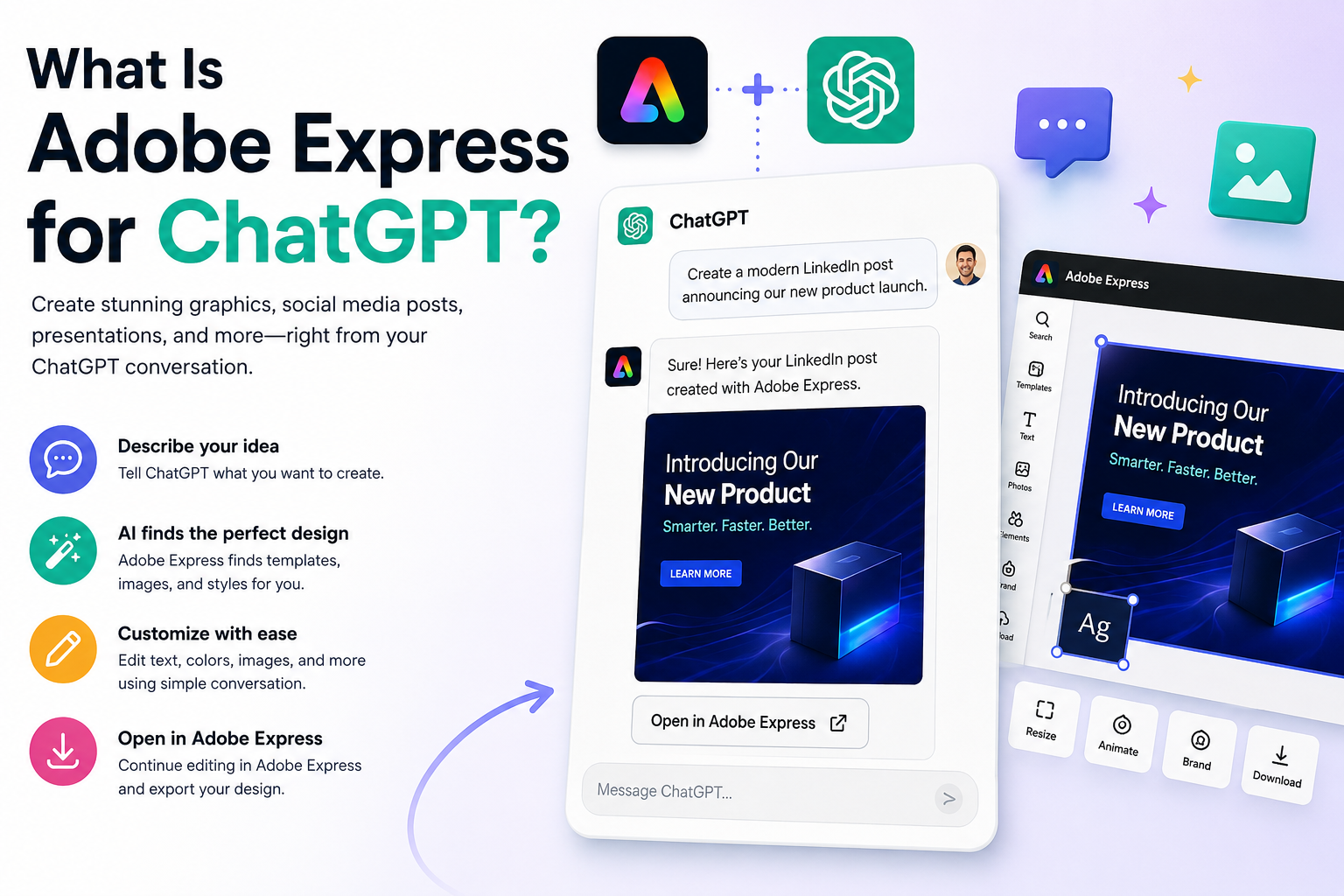
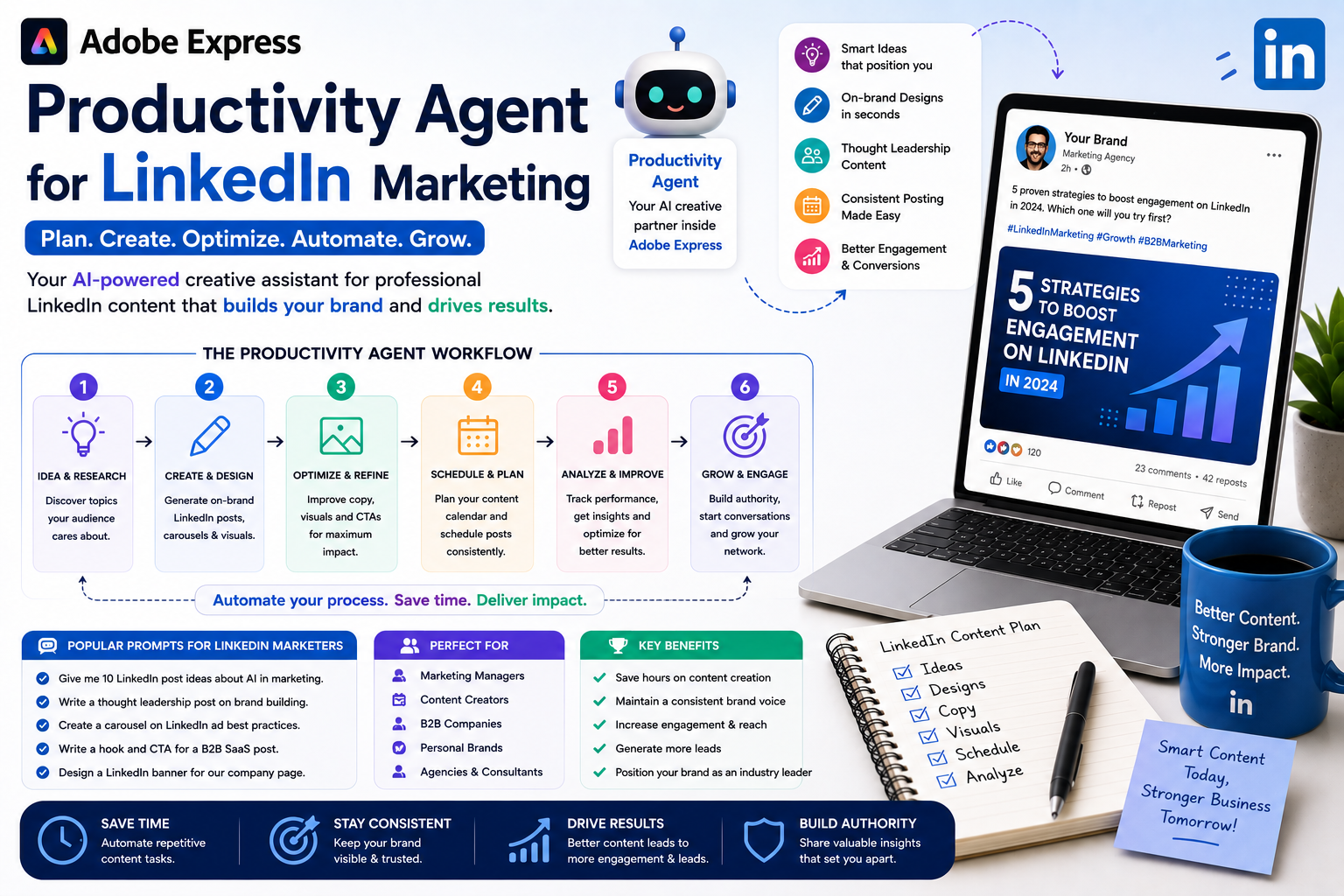
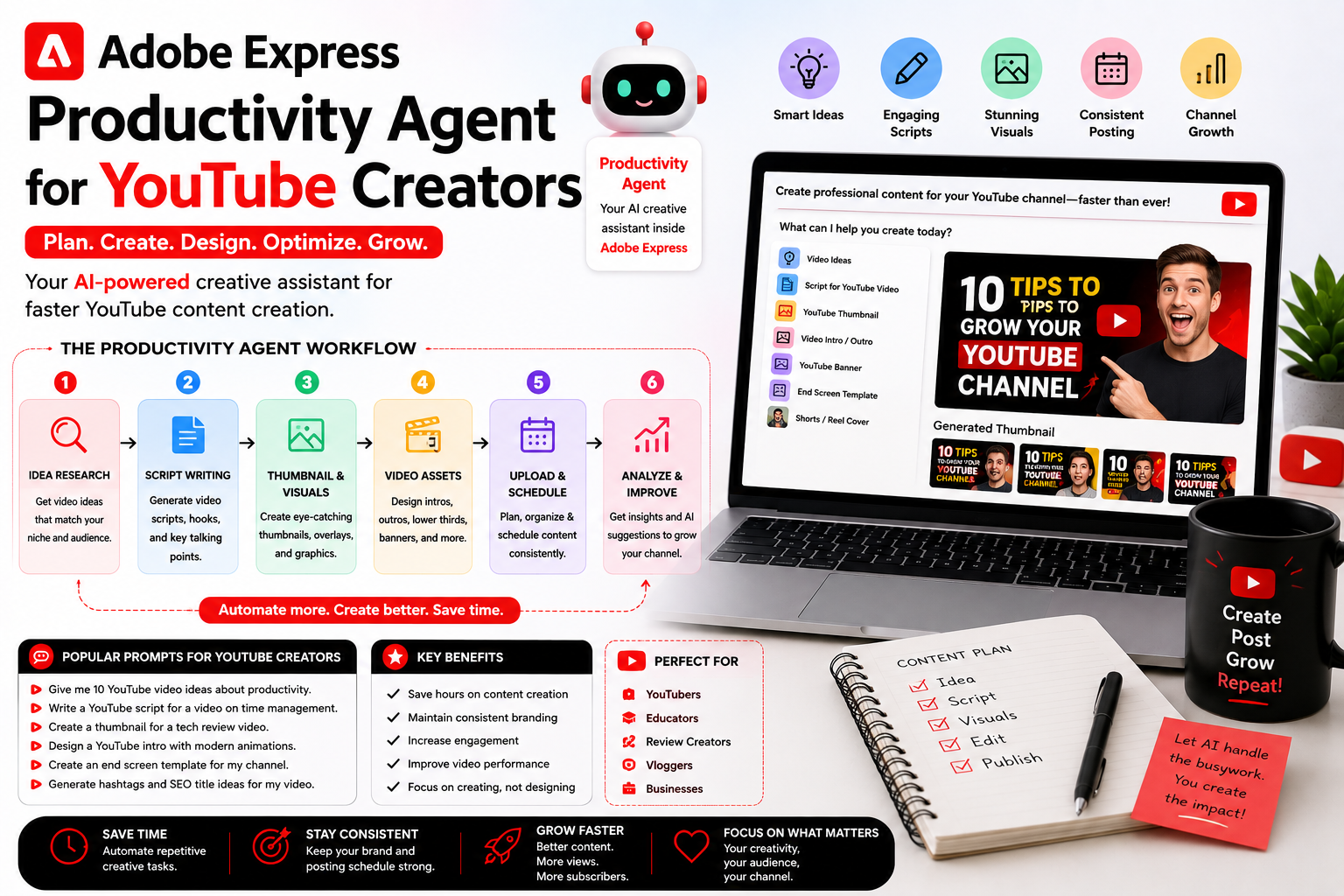
Adobe Express is one of the easiest ways to create professional-looking graphics, videos, presentations, social media posts, flyers, posters, logos, and marketing materials without needing advanced design skills. Whether you’re a student, small business owner, content creator, teacher, marketer, or hobbyist, Adobe Express helps you create polished content using templates, drag-and-drop tools, and AI-powered features.
If you’re completely new to the platform, this beginner’s guide will walk you through the basics and help you start creating your first projects with confidence.
Quick Answer
To use Adobe Express as a beginner:
- Create a free Adobe account.
- Open Adobe Express.
- Choose a template or start a blank project.
- Customize text, images, and colors.
- Add graphics, icons, or videos.
- Save and export your project.
- Share or publish your content.
Most beginners can create their first design within minutes.
What Is Adobe Express?
Adobe Express is an online design platform that allows users to create:
- Social media graphics
- Flyers
- Posters
- Presentations
- Videos
- Logos
- Invitations
- Marketing materials
- Web pages
It is designed to be much easier to learn than professional design software.
Who Is Adobe Express For?
Adobe Express is ideal for:
Small Business Owners
Create marketing materials quickly.
Social Media Managers
Build content for multiple platforms.
Students
Design presentations and assignments.
Teachers
Create educational resources.
Content Creators
Produce videos and graphics.
Beginners
No design experience required.
Step 1: Create an Adobe Account
To get started:
- Visit Adobe Express.
- Sign up for a free Adobe account.
- Verify your email address.
- Log in.
You can also sign in using:
- Apple
Once logged in, you’re ready to begin designing.
Step 2: Explore the Home Dashboard
The Adobe Express home screen includes:
Templates
Ready-made designs.
Projects
Your saved work.
Quick Actions
Fast editing tools.
AI Tools
Image generation and editing features.
Brand Assets
Logos, colors, and fonts.
Spend a few minutes exploring the interface.
Step 3: Start a New Project
Click:
Create New
You can choose:
Social Media Post
Flyer
Poster
Presentation
Video
Logo
Custom Size
Adobe Express automatically sets the correct dimensions for many project types.
Step 4: Use a Template
Beginners should start with templates.
Templates provide:
- Professional layouts
- Color schemes
- Typography
- Design structure
Simply search for:
Instagram Post
Business Flyer
Event Poster
Presentation
Logo
Choose a design you like and customize it.
Step 5: Edit Text
Click any text element.
You can change:
Font
Size
Color
Alignment
Spacing
Replace placeholder text with your own content.
For example:
Replace:
“Your Business Name”
with
“Ben’s Marketing Services”
Step 6: Replace Images
Templates often include stock images.
To add your own:
- Click an image.
- Select Replace.
- Upload your photo.
You can also access stock images directly within Adobe Express.
Step 7: Customize Colors
Colors play an important role in branding.
You can change:
Background Colors
Text Colors
Shape Colors
Accent Colors
Try using colors that match your brand or project theme.
Step 8: Add Design Elements
Adobe Express includes many design assets.
Examples include:
Icons
Shapes
Illustrations
Stickers
Graphics
Backgrounds
These elements can help make your designs more engaging.
Step 9: Use AI Features
Adobe Express includes AI-powered tools through:
Adobe Firefly
Popular AI features include:
Generate Image
Create images from text prompts.
Remove Background
Automatically isolate subjects.
Generative Fill
Modify images with AI assistance.
Text Effects
Create creative typography.
These tools can dramatically speed up content creation.
Step 10: Save Your Work
One of the best features of Adobe Express is autosave.
Projects are typically saved automatically to your Adobe account.
This allows you to:
- Continue later
- Access projects from different devices
- Recover recent edits
Still, it’s a good habit to check that your project has been saved.
Step 11: Download Your Design
When your project is finished:
Click:
Download
Choose a format:
PNG
Best for graphics.
JPG
Smaller file sizes.
Ideal for printing.
MP4
For video projects.
The file will be saved to your device.
Creating Your First Social Media Post
A great beginner project is a social media graphic.
Workflow
Choose Instagram Template
↓
Edit Text
↓
Replace Image
↓
Adjust Colors
↓
Download PNG
Most beginners can complete this process in less than 10 minutes.
Creating Your First Flyer
Flyers are another beginner-friendly project.
Add Headline
Add Event Details
Insert Images
Include Contact Information
Export as PDF
Adobe Express makes flyer creation simple.
Creating Your First Video
Video editing is surprisingly easy.
Upload Video
Trim Clips
Add Text
Add Music
Export MP4
This is perfect for social media marketing.
Understanding Layers
As your skills improve, you’ll work with:
Images
Text
Shapes
Graphics
These elements can overlap.
Learning how layers work helps create more advanced designs.
Organizing Your Projects
As you create more content:
Rename Projects
Delete Unused Drafts
Duplicate Successful Designs
Keep Brand Assets Organized
Good organization saves time later.
Common Beginner Mistakes
Using Too Many Fonts
Limit yourself to two or three.
Overcrowding Designs
Leave enough white space.
Ignoring Alignment
Keep layouts clean.
Using Low-Quality Images
Always use sharp visuals.
Overusing Effects
Simple designs often look more professional.
Avoiding these mistakes will improve your work immediately.
Best Practices for Beginners
Start With Templates
They provide a strong foundation.
Keep Designs Simple
Avoid unnecessary complexity.
Use Consistent Colors
Strengthen branding.
Focus on Readability
Make text easy to understand.
Practice Regularly
Skills improve quickly with repetition.
These habits help new users learn faster.
Adobe Express vs Professional Design Software
Adobe Express focuses on:
- Simplicity
- Speed
- Templates
- Accessibility
Professional applications such as:
Adobe Photoshop
Adobe Illustrator
Adobe InDesign
offer more advanced capabilities but require significantly more training.
Adobe Express is designed specifically for non-designers and beginners.
Frequently Asked Questions
Is Adobe Express easy to learn?
Yes. Adobe Express is designed for beginners and requires no prior design experience.
Is Adobe Express free?
Yes. A free version is available with many useful features.
Can I create social media graphics?
Absolutely. Social media content is one of Adobe Express’s primary use cases.
Can I make videos?
Yes. Adobe Express includes beginner-friendly video editing tools.
Do I need design skills?
No. Templates and AI features help users create professional-looking content quickly.
Final Answer
To use Adobe Express as a beginner, create a free Adobe account, choose a template, customize text and images, add design elements, and export your finished project. Adobe Express is designed to make graphic design, video editing, marketing content creation, and social media publishing accessible to anyone, making it one of the easiest creative tools available for beginners.