Audio can transform a simple design or video into a much more engaging experience. Whether you’re creating social media videos, presentations, tutorials, product demonstrations, advertisements, podcasts, or educational content, Adobe Express makes it easy to add music, voiceovers, sound effects, and other audio elements to your projects.
Adobe Express provides tools for uploading your own audio files, recording voice narration, and incorporating background music to enhance your content without requiring advanced video editing skills.
In this guide, you’ll learn how to add audio to Adobe Express and use it effectively in your projects.

Quick Answer
To add audio to Adobe Express:
- Open your project.
- Upload or create a video project.
- Click Media or Audio.
- Upload an audio file or choose music.
- Add the audio to the timeline.
- Adjust timing and volume.
- Preview the project.
- Export the final video.
Audio can be used for background music, narration, podcasts, and sound effects.
Why Add Audio?
Audio helps make content more engaging and professional.
Common benefits include:
Better Viewer Engagement
Music and narration capture attention.
Improved Storytelling
Audio adds emotion and context.
Professional Presentation
Voiceovers create polished content.
Educational Support
Narration helps explain concepts.
Stronger Marketing
Music can enhance promotional messaging.
What Types of Audio Can You Add?
Adobe Express supports various audio types.
Background Music
Enhance mood and atmosphere.
Voiceovers
Explain content through narration.
Sound Effects
Add emphasis and realism.
Podcast Audio
Integrate spoken content into videos.
Recorded Interviews
Include discussions and testimonials.
Supported Audio Formats
Adobe Express commonly supports formats such as:
- MP3
- WAV
- M4A
Using high-quality audio files generally produces better results.
Step 1: Open Adobe Express
Sign in to Adobe Express and create a new project or open an existing one.
Audio works particularly well in:
- Videos
- Presentations
- Social media content
- Marketing projects
- Educational materials
Step 2: Create or Open a Video Project
Audio is typically added to video-based projects.
Examples include:
- Instagram Reels
- TikTok videos
- YouTube videos
- Promotional content
- Tutorials
Open the project where the audio will be used.
Step 3: Locate the Audio Tools
Look for options such as:
- Audio
- Music
- Media
- Upload
The exact interface may vary depending on your version of Adobe Express.
Step 4: Upload an Audio File
Select:
Upload Audio
Choose the audio file from your device.
Examples:
Music Track
Background soundtrack.
Voice Recording
Narration or explanation.
Sound Effect
Transitions and emphasis.
Adobe Express will process the file and make it available within the project.
Step 5: Add Audio to the Timeline
Once uploaded:
- Insert the audio into the project timeline.
- Position it where you want playback to begin.
The audio track becomes part of the project structure.
Step 6: Adjust Audio Timing
You can align audio with:
Video Clips
Synchronize visuals and sound.
Animations
Match movement to audio cues.
Text Overlays
Coordinate narration with on-screen information.
Proper timing improves the viewing experience.
Step 7: Adjust Volume Levels
Audio volume should be balanced carefully.
Background Music
Keep volume relatively low.
Narration
Ensure voices remain clear.
Sound Effects
Use sparingly for emphasis.
A good mix prevents important audio from being drowned out.
Step 8: Record a Voiceover
Adobe Express also allows voice narration.
Common Uses
- Tutorials
- Training videos
- Product demonstrations
- Educational lessons
Simply record your voice and insert it into the project.
Step 9: Add Background Music
Music can significantly improve engagement.
Popular uses include:
Marketing Videos
Create excitement and energy.
Travel Videos
Enhance atmosphere.
Social Media Content
Increase viewer retention.
Presentations
Create a more polished experience.
Choose music that matches the tone of the content.
Step 10: Combine Multiple Audio Sources
Many projects use:
Narration
Primary explanation.
Background Music
Atmosphere and energy.
Sound Effects
Additional emphasis.
Adobe Express allows these elements to work together within the same project.
Step 11: Preview the Audio
Before exporting:
Listen Carefully
Check:
- Volume levels
- Synchronization
- Audio quality
Review on Multiple Devices
Test:
- Speakers
- Headphones
- Mobile devices
This helps identify potential issues.
Step 12: Export the Finished Project
Click:
Download
Choose:
MP4
Adobe Express will render the project with the audio included.
Best Uses for Audio in Adobe Express
Social Media Videos
Create more engaging content.
Educational Videos
Explain concepts through narration.
Product Demonstrations
Highlight features and benefits.
Event Promotions
Build excitement.
Business Presentations
Communicate information clearly.
Portfolio Projects
Showcase work professionally.
Audio Best Practices
Use High-Quality Recordings
Clear audio improves professionalism.
Avoid Excessive Volume
Music should support, not overpower.
Keep Narration Concise
Shorter explanations often perform better.
Match Audio to Content
Choose music that fits the mood.
Test Before Publishing
Always preview the final version.
Common Audio Mistakes
Music Too Loud
Makes narration difficult to hear.
Poor Recording Quality
Background noise reduces professionalism.
Unbalanced Levels
Different clips should sound consistent.
Overusing Sound Effects
Too many effects can distract viewers.
Ignoring Mobile Users
Many viewers consume content on smartphones.
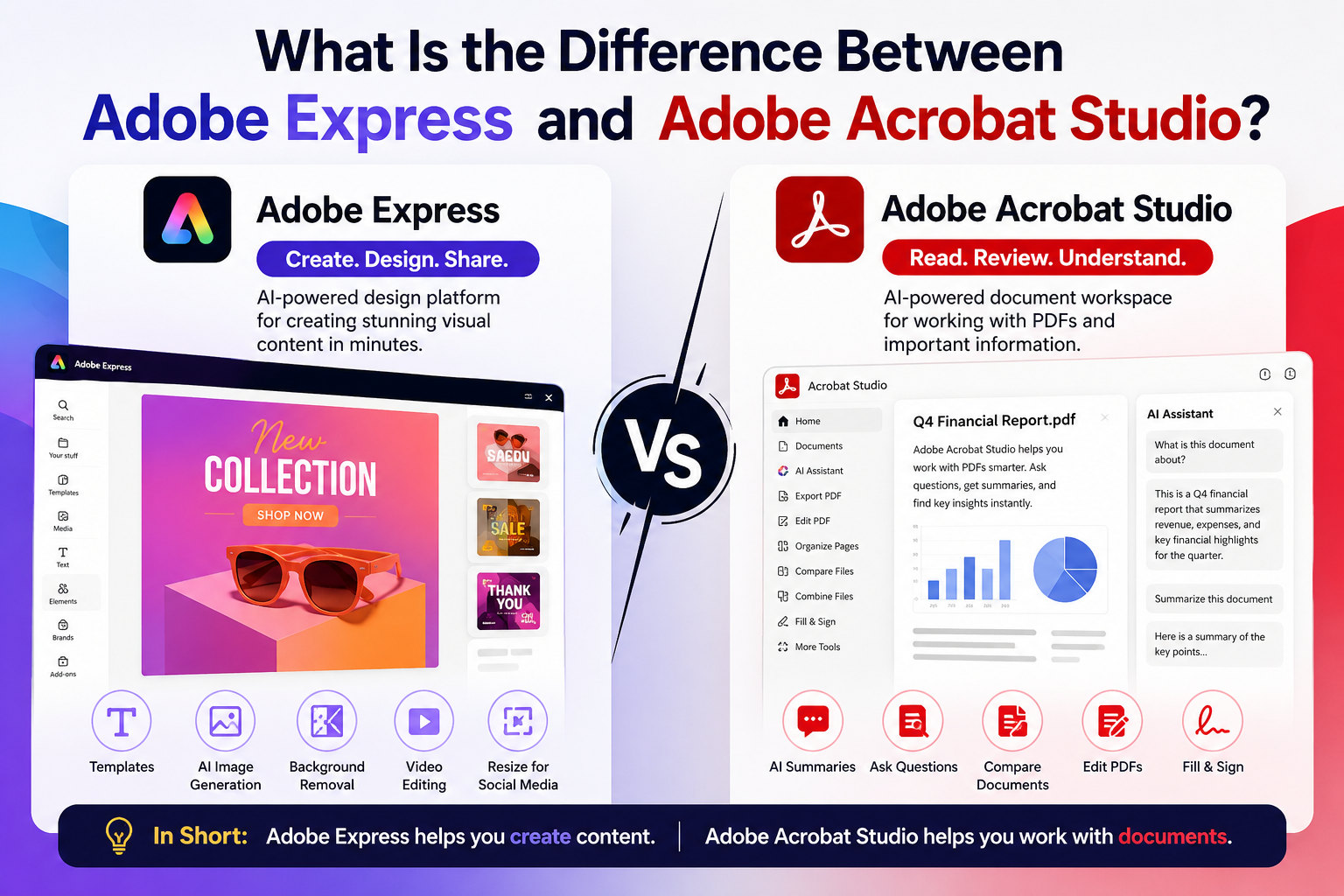
Adobe Express vs Premiere Pro for Audio Editing
Adobe Express provides:
- Simple audio integration
- Voiceovers
- Music tracks
- Basic volume controls
For advanced audio workflows, Adobe offers:
Adobe Premiere Pro
which supports:
- Multi-track audio editing
- Audio effects
- Noise reduction
- Professional mixing
For most marketing and social media projects, Adobe Express offers everything needed.
Frequently Asked Questions
Can I add my own audio to Adobe Express?
Yes. Adobe Express allows users to upload audio files such as MP3 and WAV.
Can I record a voiceover?
Yes. Voice narration can be added to supported projects.
Can I add background music?
Yes. Background music is one of the most common uses for audio in Adobe Express.
Can I adjust audio volume?
Yes. Volume controls help balance narration and music.
What format should I export?
MP4 is the most common export format for projects containing audio.
Final Answer
To add audio to Adobe Express, upload an audio file or record a voiceover, place it into the project timeline, adjust timing and volume levels, preview the results, and export the finished project. Adobe Express makes it easy to add music, narration, sound effects, and other audio elements to videos, presentations, educational content, and marketing materials, helping create more engaging and professional-looking projects.