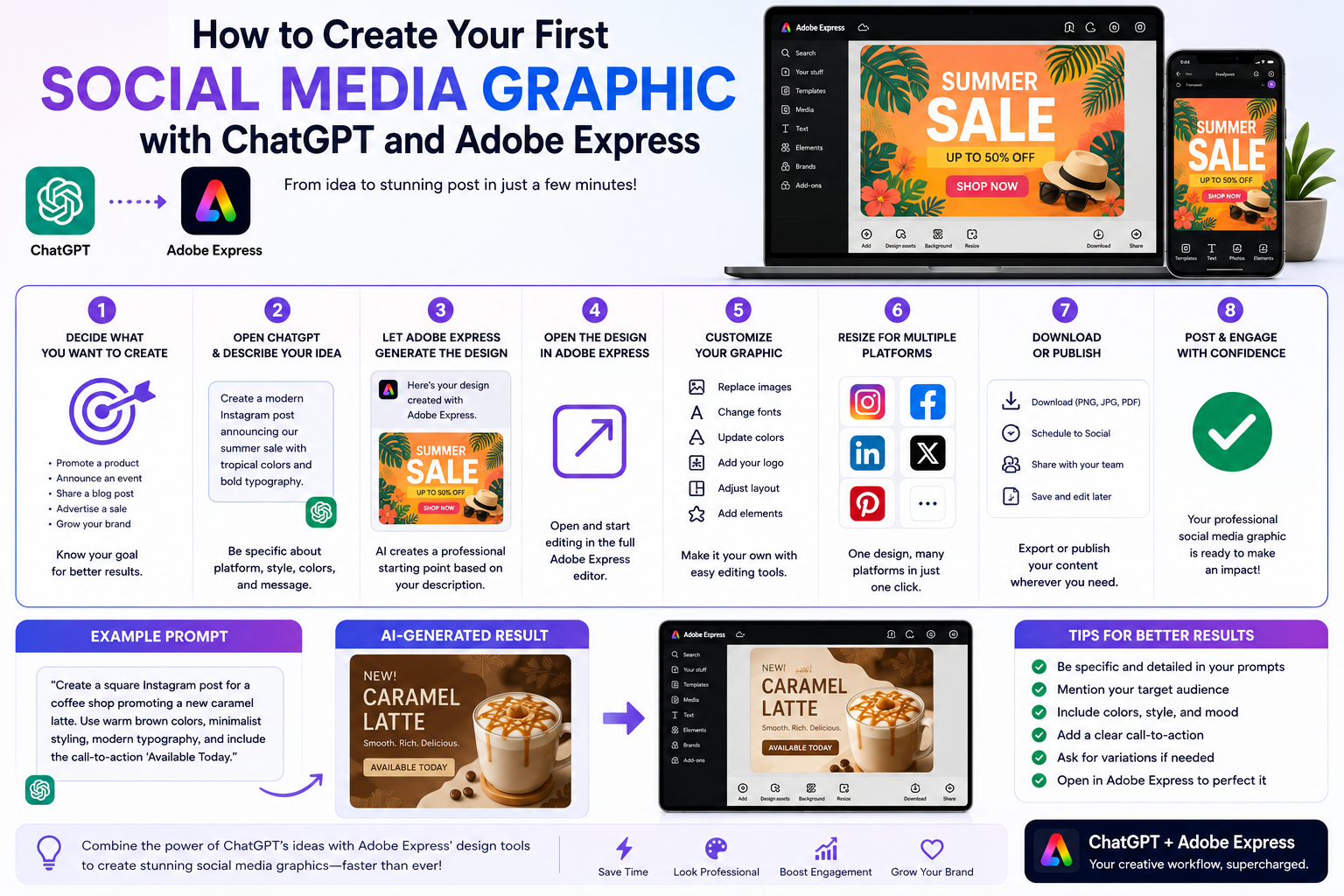
Creating social media graphics has never been easier. Instead of staring at a blank canvas or searching through hundreds of templates, you can simply describe your idea in ChatGPT and let Adobe Express help transform it into an editable design.
Whether you’re promoting a business, announcing an event, launching a product, or growing your personal brand, the combination of ChatGPT and Adobe Express allows you to move from an idea to a polished graphic in just a few minutes.
In this tutorial, you’ll learn how to create your very first social media graphic using Adobe Express inside ChatGPT.
Before You Begin
Before starting, make sure you have:
- A ChatGPT account
- An Adobe account
- Adobe Express connected to ChatGPT
- An internet connection
If you haven’t connected Adobe Express yet, see our guide:
How to Connect Adobe Express to ChatGPT
Step 1: Decide What You Want to Create
Start by defining your goal.
For example:
- Promote a product
- Announce a webinar
- Share a blog article
- Advertise a sale
- Welcome new customers
- Celebrate a company milestone
Having a clear objective helps ChatGPT generate more relevant designs.
Step 2: Open ChatGPT
Start a new conversation.
Instead of opening Adobe Express first, simply describe your design.
For example:
Create a modern Instagram graphic announcing our summer sale with tropical colors and bold typography.
Or:
Design a LinkedIn graphic celebrating our company’s 10th anniversary using a professional blue color palette.
The more details you provide, the better the result.
Step 3: Include Important Details
Good prompts contain useful information.
Consider mentioning:
- Social media platform
- Target audience
- Business type
- Preferred colors
- Design style
- Call-to-action
- Brand personality
Example:
Create a square Instagram post for a coffee shop promoting a new caramel latte. Use warm brown colors, minimalist styling, modern typography, and include the call-to-action “Available Today.”
Step 4: Let Adobe Express Generate the Design
Once ChatGPT understands your request, Adobe Express creates an initial design.
Depending on your request, it may include:
- A suitable layout
- Typography
- Images or placeholders
- Color palette
- Design hierarchy
- Call-to-action button
- Decorative elements
Think of this as your first draft rather than the finished product.
Step 5: Open the Design in Adobe Express
When the design is ready, open it in Adobe Express.
This is where you gain access to the complete editing environment.
You can now customize every part of the design.
Step 6: Customize Your Graphic
Adobe Express makes it easy to personalize your project.
You can:
- Replace images
- Change fonts
- Update colors
- Add your company logo
- Insert icons
- Modify layouts
- Resize elements
- Adjust spacing
If you have an Adobe Express Premium subscription, you can also apply your Brand Kit for consistent branding.
Step 7: Resize for Multiple Platforms
One of Adobe Express’s most useful features is automatic resizing.
Your original Instagram design can quickly become:
- Facebook post
- LinkedIn post
- Pinterest Pin
- X post
- Story
- Flyer
- Poster
This saves significant time when publishing across multiple platforms.
Step 8: Download or Publish
Once you’re happy with the design, choose how you want to use it.
Options include:
- Download as PNG
- Download as JPG
- Download as PDF
- Schedule social media posts (depending on your Adobe Express plan)
- Share directly with your team
- Continue editing later
Example Prompt Library
Here are a few prompts you can try.
Small Business
Create a Facebook graphic announcing a grand opening for a bakery using pastel colors and friendly typography.
Technology Company
Design a LinkedIn post promoting our cybersecurity webinar using blue gradients and modern icons.
Restaurant
Create an Instagram promotion for a weekend brunch special featuring elegant typography and warm colors.
Fitness Coach
Design a motivational Instagram post encouraging people to start their Monday workout.
Real Estate
Create a Facebook advertisement promoting a newly listed luxury home with clean, professional styling.
Tips for Better Results
To create stronger graphics:
- Be specific.
- Mention dimensions when needed.
- Describe your audience.
- Include brand colors.
- Specify modern, minimalist, luxury, playful, or professional styles.
- Include your desired call-to-action.
- Ask for multiple versions before choosing one.
Small prompt improvements often produce much better designs.
Common Mistakes
Avoid prompts like:
Make me a post.
Instead write:
Create a modern LinkedIn graphic promoting a free cybersecurity checklist for IT managers using navy blue colors, minimalist design, professional typography, and include a Download Now call-to-action.
Specific prompts consistently produce better results.
Best Workflow
Many professionals follow this workflow:
- Brainstorm ideas with ChatGPT.
- Generate the first design.
- Open Adobe Express.
- Replace placeholder images.
- Apply Brand Kit.
- Resize for multiple platforms.
- Export finished graphics.
- Schedule publication.
This process dramatically reduces the time required to produce high-quality marketing content.
Who Can Benefit?
This workflow is useful for:
- Small businesses
- Marketing agencies
- Content creators
- Social media managers
- Educators
- Freelancers
- Non-profit organizations
- Event planners
- Startup founders
Anyone who regularly creates visual content can save time using ChatGPT and Adobe Express together.
Conclusion
Creating your first social media graphic with ChatGPT and Adobe Express is remarkably straightforward. Instead of beginning with a blank page, you simply describe your vision in natural language and let AI generate a professional starting point. From there, Adobe Express provides all the tools you need to refine the design, apply your branding, and prepare it for publication.
As you become more familiar with the workflow, you’ll be able to produce high-quality graphics for multiple social media platforms in a fraction of the time required by traditional design methods.
Frequently Asked Questions
Can I create graphics for multiple social media platforms?
Yes. Adobe Express makes it easy to resize your design for Instagram, Facebook, LinkedIn, Pinterest, X, and many other platforms.
Do I need design experience?
No. ChatGPT helps with the creative concept, while Adobe Express provides easy-to-use editing tools that are suitable for beginners.
Can I use my company logo?
Yes. Once the design opens in Adobe Express, you can upload or insert your logo and customize the graphic to match your brand.
Can I edit everything after ChatGPT creates the design?
Absolutely. The generated design is fully editable inside Adobe Express, allowing you to modify text, images, colors, layouts, and other design elements before publishing.
Related Articles
- What Can Adobe Express Do Inside ChatGPT?
- Adobe Express App vs Adobe Express Website: Which Should You Use?
- Create Your First Instagram Post with ChatGPT and Adobe Express
- Design Marketing Materials with Adobe Express and ChatGPT
- Best ChatGPT Prompts for Adobe Express






