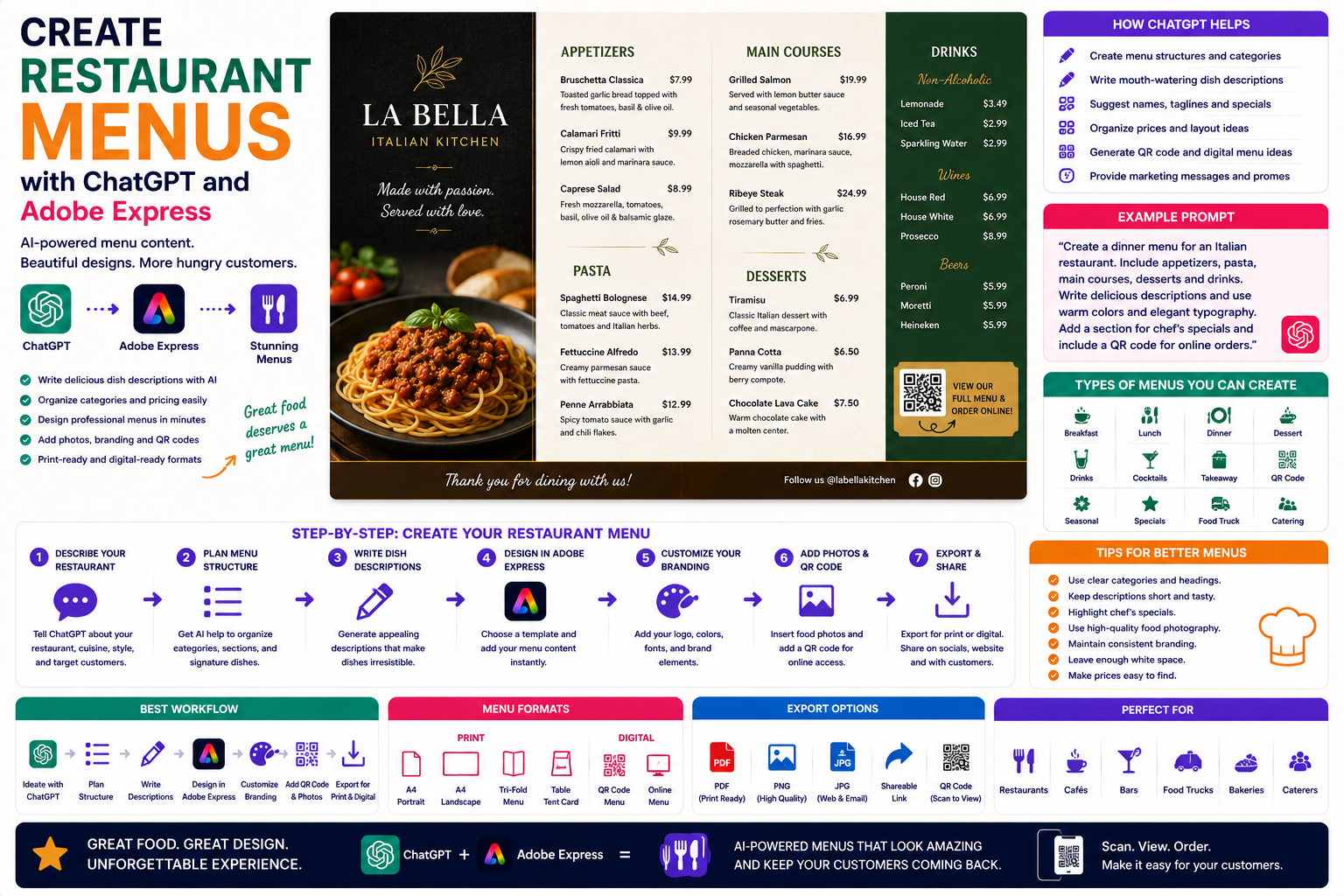
A restaurant menu does much more than list food and drinks—it tells your brand story, highlights your signature dishes, and influences customer purchasing decisions. A clear, visually appealing menu can improve the dining experience while encouraging guests to explore more of what you offer.
Designing menus traditionally involves writing descriptions, organizing categories, choosing fonts, selecting images, and carefully balancing the layout. With ChatGPT and Adobe Express, much of that work becomes faster and easier.
ChatGPT helps you generate menu copy, dish descriptions, pricing layouts, and promotional ideas, while Adobe Express transforms those ideas into beautiful, editable menu designs suitable for print or digital use.
In this guide, you’ll learn how to create restaurant menus using AI from start to finish.
Why Use ChatGPT and Adobe Express?
Traditional menu creation often includes:
- Writing food descriptions
- Organizing menu sections
- Designing layouts
- Choosing typography
- Selecting colors
- Finding food photography
- Preparing print-ready files
With ChatGPT and Adobe Express working together, you can simplify every stage of the process.
Instead of beginning with a blank document, you begin with a complete menu concept.
What Types of Menus Can You Create?
This workflow supports almost every type of restaurant menu.
Examples include:
- Breakfast menus
- Lunch menus
- Dinner menus
- Dessert menus
- Drinks menus
- Cocktail menus
- Seasonal menus
- Holiday specials
- Takeaway menus
- Digital QR code menus
You can also create menus for cafés, bakeries, food trucks, bars, and catering businesses.
Step 1: Describe Your Restaurant
Begin by telling ChatGPT about your restaurant.
Example prompt:
Create a modern Italian restaurant menu using elegant typography, warm colors, and sections for appetizers, pasta, pizza, desserts, and drinks.
Or:
Design a trendy coffee shop menu with a minimalist layout featuring espresso drinks, pastries, sandwiches, and seasonal specials.
The more information you provide, the more tailored your menu will be.
Step 2: Organize the Menu Structure
ChatGPT can organize your dishes into logical categories.
Typical sections include:
- Starters
- Soups
- Salads
- Main courses
- Side dishes
- Desserts
- Beverages
- Specials
A clear structure helps customers quickly find what they’re looking for.
Step 3: Write Delicious Menu Descriptions
Well-written descriptions can make dishes more appealing.
Ask ChatGPT to generate descriptions such as:
Write an enticing menu description for grilled salmon served with lemon herb butter and seasonal vegetables.
ChatGPT can create descriptions that sound professional while matching your restaurant’s style and tone.
Step 4: Generate the Menu Design
Open Adobe Express and select a menu template.
Adobe Express allows you to create:
- Single-page menus
- Multi-page menus
- Folded menus
- Table menus
- Digital menus
- QR code menus
Simply insert the text generated by ChatGPT into your chosen design.
Step 5: Customize Your Branding
Adobe Express makes it easy to personalize your menu.
You can:
- Upload your restaurant logo
- Apply brand colors
- Change typography
- Add food photography
- Insert icons
- Include decorative graphics
- Apply your Brand Kit
Consistent branding helps strengthen your restaurant’s identity.
Step 6: Add High-Quality Food Photography
Images can encourage customers to order.
Adobe Express allows you to include:
- Signature dishes
- Desserts
- Drinks
- Seasonal specials
- Chef recommendations
Use photography selectively to keep the menu clean and easy to read.
Step 7: Add QR Codes
Many restaurants now use QR code menus.
You can link your menu to:
- Online ordering
- Reservation systems
- Loyalty programs
- Restaurant websites
- Delivery platforms
Adding a QR code allows customers to access the latest version of your menu from their phones.
Step 8: Export Your Menu
Once your design is complete, Adobe Express supports several export options.
For print:
- High-resolution PDF
- A4 or Letter size
- Folded menu formats
For digital:
- PNG
- JPG
- Website uploads
- Social media
- Email campaigns
This allows you to use the same menu across multiple channels.
Example Prompt Library
Italian Restaurant
Create an elegant dinner menu for an Italian restaurant using cream-colored backgrounds, serif typography, and classic European styling.
Coffee Shop
Design a modern café menu with neutral colors, minimalist icons, and sections for coffee, tea, pastries, and sandwiches.
Steakhouse
Create a premium steakhouse menu featuring dark backgrounds, gold accents, and luxury typography.
Sushi Restaurant
Design a clean Japanese restaurant menu with minimalist styling, subtle illustrations, and organized sushi categories.
Food Truck
Create a colorful food truck menu with bold typography and vibrant illustrations highlighting tacos, burritos, and beverages.
Tips for Better Menus
Professional menus usually:
- Use clear category headings.
- Keep descriptions concise.
- Highlight signature dishes.
- Use readable typography.
- Maintain consistent branding.
- Leave enough white space.
- Make prices easy to locate.
An uncluttered menu improves the customer experience.
Common Mistakes
Avoid prompts like:
Create a restaurant menu.
Instead write:
Design a premium seafood restaurant menu with navy blue and white colors, elegant typography, separate lunch and dinner sections, chef recommendations, high-quality seafood photography, and a QR code linking to online reservations.
Detailed prompts help produce stronger AI-generated designs.
Best Workflow
Many restaurant owners follow this process:
- Describe the restaurant in ChatGPT.
- Generate menu categories.
- Write dish descriptions.
- Create the menu in Adobe Express.
- Add branding and food photography.
- Include QR codes if needed.
- Export for print and digital use.
This workflow saves time while maintaining a polished, professional appearance.
Who Should Use This Workflow?
This AI-assisted workflow is ideal for:
- Restaurants
- Cafés
- Coffee shops
- Bakeries
- Food trucks
- Bars
- Hotels
- Catering businesses
- Takeaway restaurants
- Fine dining establishments
Whether you’re opening a new restaurant or refreshing your existing menu, AI can simplify the design process.
Why This Workflow Works
Starting with ChatGPT helps you organize your content before you begin designing.
By the time you open Adobe Express, you’ll already have:
- A menu structure
- Dish descriptions
- Category headings
- Promotional messaging
- Design direction
This allows you to focus on presentation rather than writing.
Conclusion
Creating restaurant menus with ChatGPT and Adobe Express combines intelligent writing assistance with professional design tools. ChatGPT helps generate menu structures, appealing food descriptions, and branding ideas, while Adobe Express provides beautifully designed templates that are fully customizable and ready for print or digital distribution.
Whether you’re designing a café menu, a fine dining menu, or a QR code menu for mobile ordering, this AI-powered workflow helps you create attractive, professional menus in significantly less time.
Frequently Asked Questions
Can ChatGPT write menu descriptions?
Yes. ChatGPT can generate appetizing descriptions for food and beverages while matching your restaurant’s tone and style.
Can Adobe Express create restaurant menus?
Yes. Adobe Express offers menu templates suitable for cafés, restaurants, bakeries, bars, and many other hospitality businesses.
Can I add a QR code to my menu?
Absolutely. Adobe Express allows you to include QR codes linking to online ordering, reservations, digital menus, or loyalty programs.
Can I print my menu?
Yes. Adobe Express supports high-resolution exports suitable for commercial printing as well as digital formats for websites and social media.
Related Articles
- Create Business Cards with ChatGPT and Adobe Express
- Create Event Posters with ChatGPT and Adobe Express
- Generate Marketing Brochures with ChatGPT and Adobe Express
- Design a Flyer Without Opening Adobe Express
- Best ChatGPT Prompts for Adobe Express