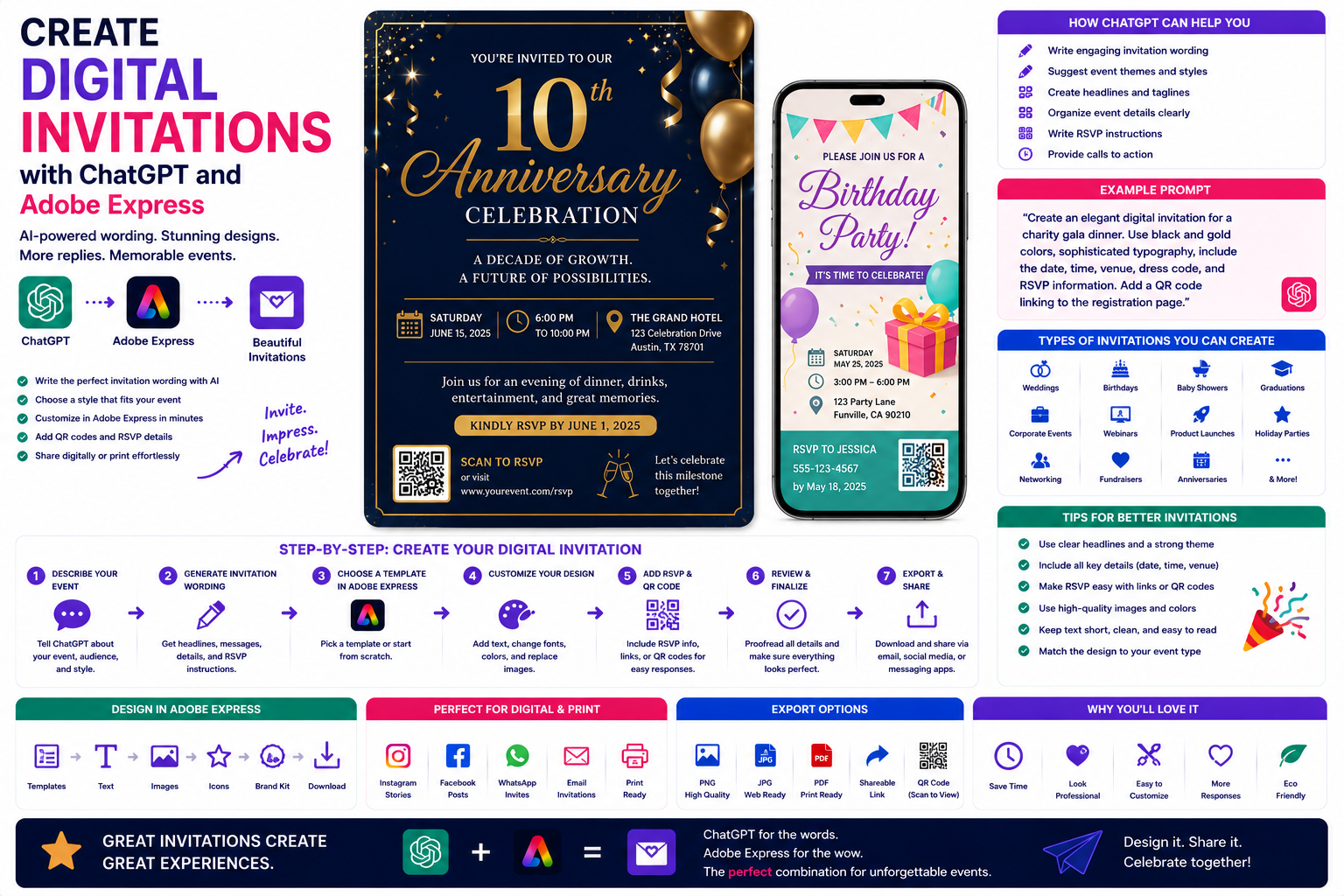
Digital invitations have become the preferred way to invite guests to personal celebrations, business events, webinars, conferences, and community gatherings. They are fast to create, easy to share, environmentally friendly, and can be customized for any occasion.
Creating a professional invitation used to require graphic design experience and careful wording. Today, ChatGPT and Adobe Express work together to simplify the entire process. ChatGPT helps generate invitation text, creative themes, and event messaging, while Adobe Express transforms those ideas into beautiful, editable invitation designs.
Whether you’re planning a birthday party, corporate event, wedding, holiday celebration, or product launch, this guide will show you how to create digital invitations with AI.
Why Use ChatGPT and Adobe Express?
Traditional invitation design often involves:
- Writing invitation wording
- Choosing colors
- Selecting fonts
- Finding graphics
- Designing layouts
- Organizing event information
- Exporting files for sharing
With ChatGPT and Adobe Express, much of this work becomes conversational.
Instead of starting with a blank page, you begin with a complete invitation concept.
What Types of Invitations Can You Create?
This workflow works for almost every event.
Examples include:
- Birthday parties
- Weddings
- Baby showers
- Graduation parties
- Business conferences
- Webinars
- Product launches
- Holiday celebrations
- Networking events
- Charity fundraisers
- Company anniversaries
- Customer appreciation events
You can also create invitation templates that are easy to reuse for future events.
Step 1: Describe Your Event
Start by telling ChatGPT about your event.
Example prompt:
Create an elegant digital invitation for a company’s 10th anniversary celebration using navy blue and gold colors with modern typography.
Or:
Design a fun birthday invitation for a child’s superhero-themed party using bright colors and playful illustrations.
The more details you provide, the more personalized the invitation will become.
Step 2: Generate the Invitation Text
ChatGPT can write every part of your invitation.
Examples include:
- Invitation headline
- Welcome message
- Date and time
- Venue
- Dress code
- RSVP instructions
- Event highlights
- Closing message
Example prompt:
Write a formal invitation for a business networking event aimed at entrepreneurs.
ChatGPT can generate multiple wording options depending on the tone you prefer.
Step 3: Create the Invitation Design
Open Adobe Express and choose an invitation template.
Adobe Express supports designs for:
- Square invitations
- Portrait invitations
- Landscape invitations
- Social media invitations
- Email invitations
- Printable invitations
Simply insert the invitation text generated by ChatGPT.
Step 4: Customize Your Design
Adobe Express allows you to personalize every element.
You can:
- Upload your logo
- Change colors
- Select fonts
- Add illustrations
- Insert photos
- Apply your Brand Kit
- Rearrange layouts
- Add decorative elements
This ensures every invitation reflects your personal style or brand identity.
Step 5: Add RSVP Information
Every invitation should clearly explain how guests can respond.
Examples include:
- RSVP by email
- RSVP via website
- Phone number
- QR code
- Online registration form
- Event platform link
Making RSVP simple encourages higher response rates.
Step 6: Include QR Codes
QR codes can link guests directly to:
- Registration pages
- Google Maps
- Event websites
- Ticket platforms
- Calendars
- Event schedules
Adobe Express makes it easy to include QR codes as part of your design.
Step 7: Export and Share
Once your invitation is complete, Adobe Express supports several export options.
Share it through:
- X
- QR codes
- Website downloads
You can also export high-resolution files for professional printing if needed.
Example Prompt Library
Wedding
Design a luxurious wedding invitation using ivory backgrounds, gold accents, elegant serif fonts, and floral illustrations.
Corporate Event
Create a professional invitation for an AI innovation conference using modern blue gradients, clean typography, and technology-inspired graphics.
Birthday Party
Design a colorful birthday invitation featuring balloons, confetti, and playful typography.
Webinar
Create a digital invitation promoting a free cybersecurity webinar with a bold “Register Now” call-to-action.
Charity Gala
Design an elegant fundraising dinner invitation using black and gold colors with premium typography.
Tips for Better Invitations
Professional invitations usually include:
- One clear headline
- Event name
- Date and time
- Venue
- RSVP information
- Consistent branding
- Readable typography
- Enough white space
Guests should be able to find important details within seconds.
Common Mistakes
Avoid prompts such as:
Create an invitation.
Instead write:
Design a modern digital invitation for a customer appreciation event celebrating our company’s 15th anniversary. Use navy blue and gold colors, elegant typography, company branding, RSVP QR code, and include the headline “You’re Invited to Celebrate with Us.”
Detailed prompts consistently produce stronger AI-generated invitations.
Best Workflow
Many organizations use this workflow:
- Describe the event in ChatGPT.
- Generate invitation wording.
- Create the invitation in Adobe Express.
- Apply branding.
- Add QR codes and RSVP details.
- Export for digital sharing or printing.
This process significantly reduces the time needed to create professional invitations.
Who Should Use This Workflow?
This workflow is ideal for:
- Event planners
- Small businesses
- Marketing agencies
- Wedding planners
- Schools
- Non-profit organizations
- Restaurants
- Community groups
- Conference organizers
- Individuals planning private events
Anyone creating invitations can benefit from AI-assisted writing and design.
Why This Workflow Is Effective
Starting with ChatGPT helps organize the event information before moving into visual design.
By the time you open Adobe Express, you’ll already have:
- Invitation wording
- Event details
- RSVP instructions
- Design direction
- Tone of voice
This allows you to focus on creating an attractive invitation instead of writing from scratch.
Conclusion
Creating digital invitations with ChatGPT and Adobe Express combines intelligent writing assistance with professional design tools. ChatGPT helps you develop engaging invitation text, organize event details, and generate creative themes, while Adobe Express transforms those ideas into polished invitations ready for email, social media, messaging apps, or print.
Whether you’re inviting guests to a wedding, business conference, webinar, birthday celebration, or fundraising event, this AI-powered workflow helps you create memorable invitations quickly while maintaining a polished and professional appearance.
Frequently Asked Questions
Can ChatGPT write invitation wording?
Yes. ChatGPT can generate formal, casual, elegant, or playful invitation text tailored to your event and audience.
Can Adobe Express create invitation cards?
Yes. Adobe Express includes templates for digital invitations, printed invitation cards, event announcements, and social media invitations.
Can I include a QR code for RSVPs?
Absolutely. Adobe Express allows you to add QR codes that link to registration forms, websites, ticket pages, or online calendars.
Can I print my invitation?
Yes. Adobe Express supports high-resolution exports suitable for professional printing as well as digital sharing.
Related Articles
- Design Product Catalogs with ChatGPT and Adobe Express
- Create Restaurant Menus with ChatGPT and Adobe Express
- Create Event Posters with ChatGPT and Adobe Express
- Generate Marketing Brochures with ChatGPT and Adobe Express
- Best ChatGPT Prompts for Adobe Express