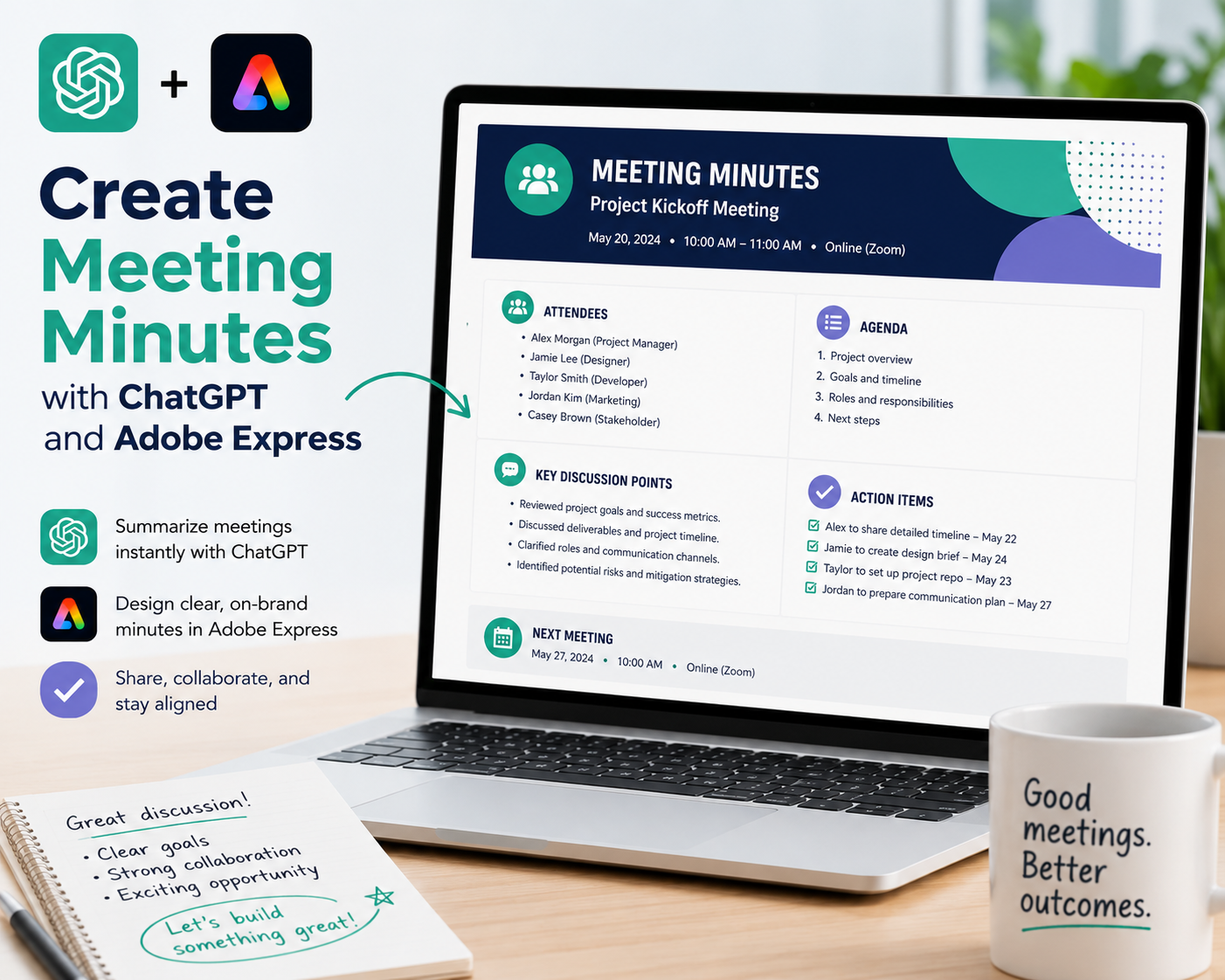
Meeting minutes are one of the most valuable business documents an organization produces. They provide an official record of discussions, decisions, responsibilities, and follow-up actions. Well-written meeting minutes ensure everyone leaves the meeting with a shared understanding of what was discussed and what happens next.
Unfortunately, writing meeting minutes can be time-consuming. Notes are often incomplete, discussions can be difficult to summarize, and formatting varies from one meeting to the next.
By combining ChatGPT with Adobe Express, you can streamline the entire process. ChatGPT helps summarize conversations, organize topics, identify decisions, and generate action items, while Adobe Express transforms the final document into a professional, branded meeting record.
In this guide, you’ll learn how to create meeting minutes using AI.
Why Use ChatGPT and Adobe Express?
Creating meeting minutes traditionally involves:
- Reviewing notes
- Summarizing discussions
- Recording decisions
- Assigning action items
- Formatting the document
- Applying branding
- Sharing with participants
ChatGPT accelerates the writing process while Adobe Express enhances the presentation.
Why Meeting Minutes Matter
Meeting minutes help organizations:
- Record important decisions
- Track commitments
- Improve accountability
- Reduce misunderstandings
- Document project progress
- Support compliance
- Preserve institutional knowledge
- Improve future meetings
Good minutes become valuable historical records.
What Should Meeting Minutes Include?
Professional meeting minutes typically contain:
- Meeting title
- Date and time
- Participants
- Meeting objectives
- Discussion summary
- Decisions made
- Action items
- Responsible owners
- Deadlines
- Next meeting date
A consistent structure makes minutes easier to review.
Step 1: Gather Your Notes
Collect all available meeting information.
This may include:
- Handwritten notes
- Meeting agenda
- Chat logs
- Audio transcript
- Action item list
- Presentation slides
The more complete your notes, the better ChatGPT can summarize them.
Step 2: Ask ChatGPT to Organize the Minutes
Example prompt:
Convert these meeting notes into professional meeting minutes using a business format with decisions and action items clearly separated.
ChatGPT can automatically organize scattered notes into a structured document.
Step 3: Summarize Discussions
Instead of recording every sentence, summarize key discussions.
Ask ChatGPT:
Summarize the discussion into concise business language while preserving the important decisions.
This creates minutes that are easier to read.
Step 4: Highlight Decisions
Clearly separate decisions from general discussion.
Examples include:
- Budget approved
- Vendor selected
- Timeline extended
- New project initiated
- Resources assigned
Decision summaries allow readers to quickly identify important outcomes.
Step 5: Generate Action Items
Every productive meeting should end with clear actions.
ChatGPT can generate tables containing:
- Task
- Responsible person
- Due date
- Priority
- Status
Action items improve accountability after the meeting.
Step 6: Design the Minutes in Adobe Express
Open Adobe Express once the content is finalized.
Create a professional layout including:
- Company logo
- Meeting information
- Discussion summary
- Decision section
- Action item table
- Notes section
- Signature area
Adobe Express provides clean document templates that are ideal for business records.
Step 7: Add Visual Organization
Adobe Express allows you to improve readability with:
- Icons
- Tables
- Color-coded sections
- Timeline graphics
- Checklists
- Department labels
- Headers
- Callout boxes
These visual elements make the document easier to scan.
Step 8: Apply Company Branding
Maintain consistency by adding:
- Company logo
- Corporate colors
- Brand fonts
- Header styles
- Footer information
- Document version
- Meeting reference number
Professional branding reinforces document quality.
Step 9: Share with Participants
Meeting minutes are commonly distributed through:
- Microsoft Teams
- SharePoint
- Slack
- Google Drive
- Project management software
- Company intranet
Adobe Express exports high-quality PDFs suitable for every platform.
Example Prompt Library
Weekly Team Meeting
Convert these weekly team meeting notes into professional meeting minutes highlighting completed work, blockers, action items, and deadlines.
Executive Meeting
Summarize the executive strategy meeting into formal meeting minutes including key decisions, financial discussions, strategic initiatives, and follow-up actions.
Client Meeting
Create client meeting minutes summarizing project progress, requested changes, agreed deliverables, responsibilities, and next meeting date.
Board Meeting
Generate formal board meeting minutes documenting motions, votes, financial decisions, governance discussions, and approved resolutions.
Project Review
Write project review meeting minutes highlighting completed milestones, identified risks, assigned actions, and upcoming deliverables.
Tips for Better Meeting Minutes
Professional meeting minutes usually:
- Focus on decisions rather than conversations.
- Clearly identify action items.
- Use concise language.
- Follow a consistent structure.
- Include deadlines.
- Record responsible owners.
- Be distributed promptly.
Minutes are most useful when shared shortly after the meeting.
Common Mistakes
Avoid prompts such as:
Write meeting minutes.
Instead write:
Convert these notes from a 90-minute project review meeting into professional meeting minutes. Organize the content into discussion summaries, decisions, action items, responsible owners, deadlines, and next meeting details. Use concise executive business language.
Detailed prompts consistently produce clearer meeting records.
Best Workflow
Many project managers follow this workflow:
- Collect meeting notes.
- Generate structured minutes with ChatGPT.
- Summarize discussions.
- Separate decisions.
- Create action item tables.
- Design the document in Adobe Express.
- Apply company branding.
- Export and distribute.
This workflow improves documentation quality while reducing administrative effort.
Who Should Use This Workflow?
This workflow is ideal for:
- Project managers
- Executive assistants
- Team leaders
- Consultants
- HR departments
- Scrum Masters
- Board secretaries
- Business owners
- Operations managers
- Government organizations
Anyone responsible for documenting meetings can benefit from AI-assisted minute creation.
Why This Workflow Works
ChatGPT transforms raw notes into organized business documentation.
By the time you open Adobe Express, you’ll already have:
- Meeting summaries
- Decisions
- Action items
- Deadlines
- A professional document structure
Adobe Express then turns those minutes into polished documentation that is easy to distribute, archive, and reference later.
Conclusion
Creating meeting minutes with ChatGPT and Adobe Express combines AI-powered summarization with professional document design. ChatGPT helps organize discussions, identify decisions, and create actionable follow-up items, while Adobe Express provides polished layouts, branding tools, and visual organization that improve readability and professionalism.
Whether you’re documenting project meetings, executive reviews, client discussions, or board meetings, this AI-powered workflow helps you create accurate, professional meeting minutes faster while improving collaboration and accountability.
Frequently Asked Questions
Can ChatGPT summarize meeting notes?
Yes. ChatGPT can organize meeting notes into structured minutes, summarize discussions, identify decisions, and generate action items. Review the output to verify accuracy before distributing it.
Can Adobe Express design meeting minutes?
Yes. Adobe Express offers document templates and layout tools that work well for meeting minutes, agendas, reports, and other professional business documents.
How soon should meeting minutes be shared?
Ideally, meeting minutes should be distributed within 24 hours so participants can review decisions, begin assigned tasks, and correct any inaccuracies while the discussion is still fresh.
Should meeting minutes include every discussion?
No. Effective meeting minutes summarize key discussions, record decisions, and document action items rather than providing a word-for-word transcript.
Related Articles
- Create Meeting Agendas with ChatGPT and Adobe Express
- Create Internal Company Newsletters with ChatGPT and Adobe Express
- Create Company Policy Documents with ChatGPT and Adobe Express
- Create Employee Handbooks with ChatGPT and Adobe Express
- Best ChatGPT Prompts for Adobe Express